The AP power-save mode was created to force power hungry APs into low-power mode to reduce how much power they use. Since every company needs to give something back to the environment, while at the same time having APs with an ridiculous amount of radios to support the ever growing crazy standards like Wi-Fi7 with support for 16 spatial-streams and multi link operation.
We also have APs with a lot of sensors and multiple radios, more radios than you will ever need (But we all love it).
Because of this, APs will use more power. They went from .3at (15.4W) to .3at (30W) to .3bt (60W) or Cisco UPOE+ .3bt (90W) and POE+++++ (812W) but even if the standard say 30 or 90W that does not mean the AP will use that amount of power at all times, like in wireless. It depends. It depends on how active each radio is, how many spatial-streams that are active and other internal components that needs to communicate.
Because of that, Cisco power-save can be used to save power by turning off radios, change the amount of spatial streams for each radio and then use a Calendar Profile to activate this power-save config when the building is closed or create a static power-save config that will force a set of APs into low-power-mode.
In this blog post we will look at how much power you actually save by analyzing historic data with a dashboard I created in Grafana.
Configuring the Power-Profile
First up is to look at how you can configure it, and what options we find in the power-profile. You can read the full guide here.
The first thing you do is to configure the power-profile, where each entry acts like an access-list (read from top to bottom).
This means that if you where to use an 9136 in .3at mode (30W) it will use 2×2, 4×4, 2×2 (6,5,2.4) as standard, but if you want 4×4 on 6Ghz and 5Ghz you can use this power profile to change this by adding an entry in the power-profile where 6Ghz and 5Ghz has sequence 0 and 1 where both is set to 4×4. The AP will then turn off 2.4Ghz but 5 and 6Ghz will be in 4×4 mode. In short, you can do more than just save power with this power profile.
Configuring the Power Profile
In this example I will set 5 and 6Ghz to 1×1 and disable 2.4GHz, USB and set the interface speed to 100Mbps.
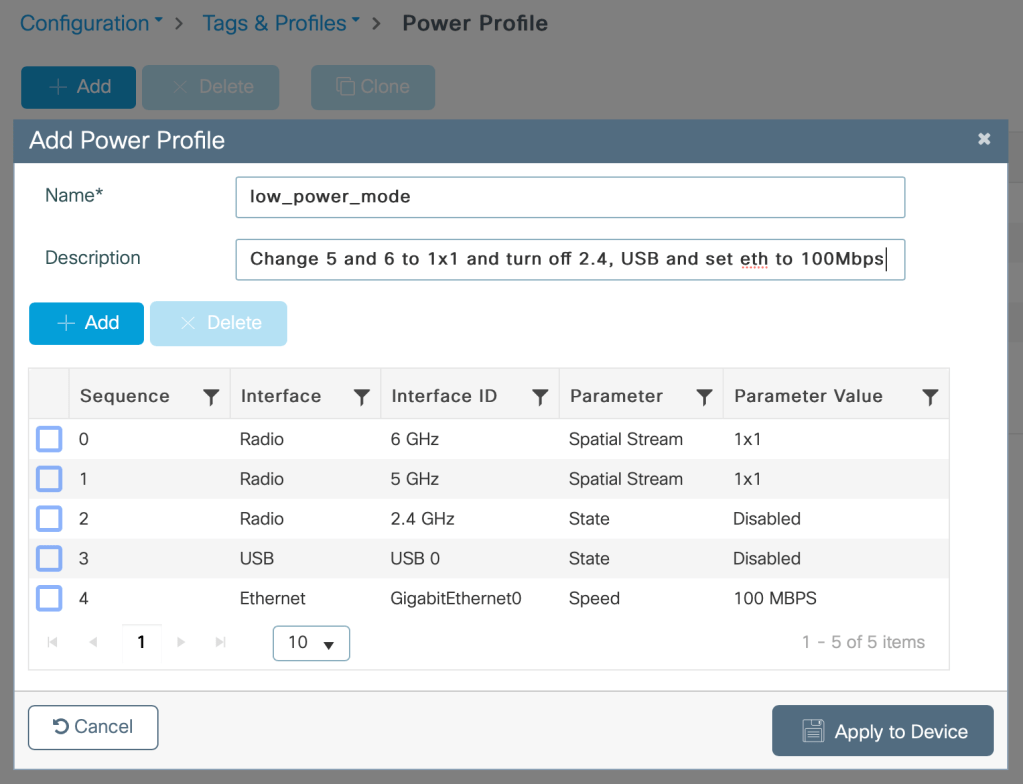
wireless profile power low_power_mode
description "Change 5 and 6 to 1x1 and turn off 2.4, USB and set eth to 100Mbps"
0 radio 6ghz spatial-stream 1
1 radio 5ghz spatial-stream 1
2 radio 24ghz state shutdown
3 usb 0 state disable
4 ethernet GigabitEthernet0 speed 100Mbps
Configuring the Calendar Profile
Then you create a calendar profile, this is not necessary if you only are going to set a static config directly on the AP Join Profile.

wireless profile calender-profile name Go_Home
recurrance daily
start 16:00:00 end 08:00:00
Configuring the AP Join Profile
Here I set a Regular Power Profile, a static config for all APs under this AP Join Profile.
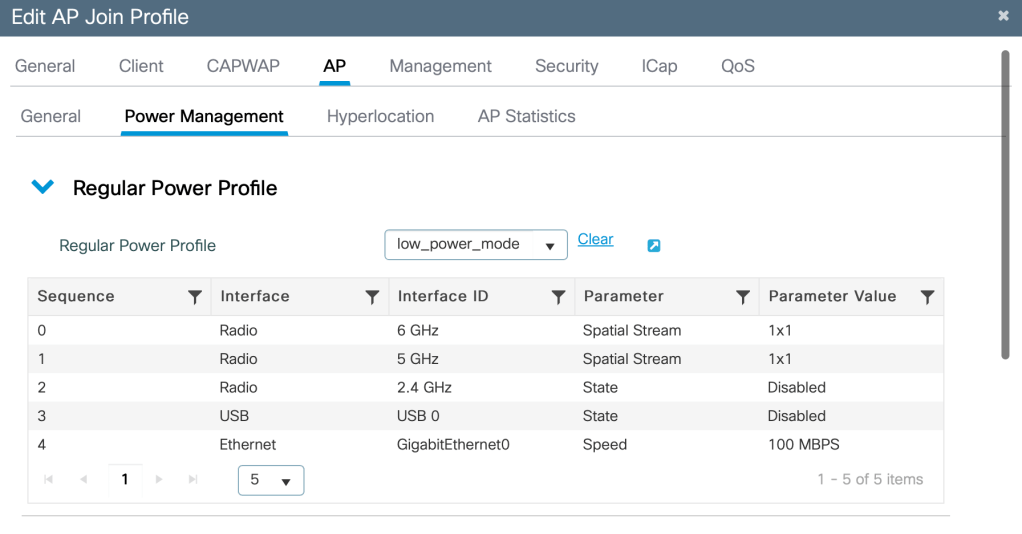
ap profile default-ap-profile
 power-profile low_power_mode
Here I use the calendar profile (same page as the regular profile)

ap profile default-ap-profile
calendar-profile Go_Home
 action power-saving-mode power-profile low_power_mode
Validate Configuration (CLI)
C9136-AP03#show ap power policy status
Cur Policy Type: Regular
=============================================
Policy Name: low_power_mode
Power Save Status: Disabled
Num of Interface Policies: 7
ID  Interface         State     Speed  Status
 1  6 GHz                Up      1 SS  Policy
 2  5 GHz                Up      1 SS  Policy
 3  2.4 GHz            Down        NA  Policy
 4  USB0               Down        NA  Policy
 5  GigabitEthernet0     Up  100 Mbps  Policy
 6  GigabitEthernet1     Up  2.5 Gbps   Fixed
 7  Secondary 5 GHz    Down        NA   Fixed
!
!
!
C9136-AP03#show ap power calendar config
================================================
Calendar Prof Name: Go_Home
 Type        : Daily
 Start Time  : 16:00:00
 End Time    : 08:00:00 next-day
 Power Policy: low_power_mode
 Status      : Stopped, NA
You can have a lot of fun with this config, but how much do you actually save?
The Power-Save Dashboard
Here is my Power-Save Grafana dashboard I have created to see how much power my AP is using at any given time. Here you see that I receive RRM data to see how active each radio is, interface traffic data to see how much traffic is going over the interface on the switch from the AP, actual power consumption for each interface and power configuration policy.
This data is sent using streaming telemetry from a 9800Cl 17.EFT and from a 9200CX-12P. Data is being received every 5s.
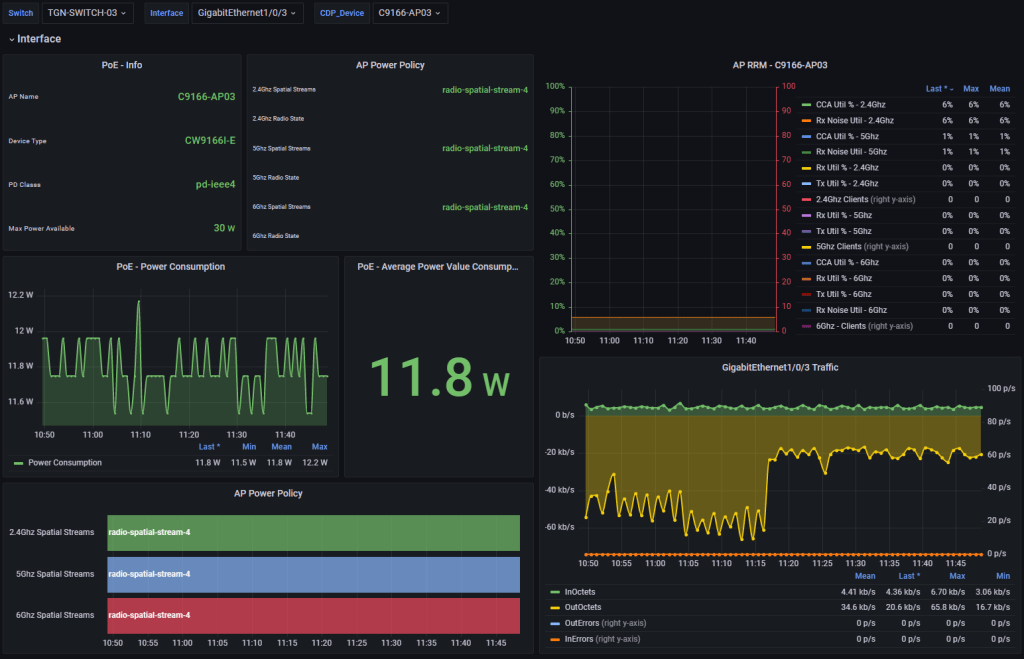
Next up is to see on each AP (9120,9166,9136) on how much power they are using by just being idle. That means no clients, but radios are still active sending beacons, and de-modulating other traffic on the same channel etc. The RRM data is then very important to see how «idle» the AP really was.
Keep in mind that this is tested at my house, an AP in a big building in the middle of the city will have a bit more to do when they experience a lot more channel overlap from other access points etc.
Analysing the power consumption
The C9120 is using an average of 9.49W with all radios enabled (not dual 5Ghz mode) and zero clients. I had a «bug» with RRM data for 2.4Ghz at this time, it was around 10-20%. 3xSSIDs is enabled.
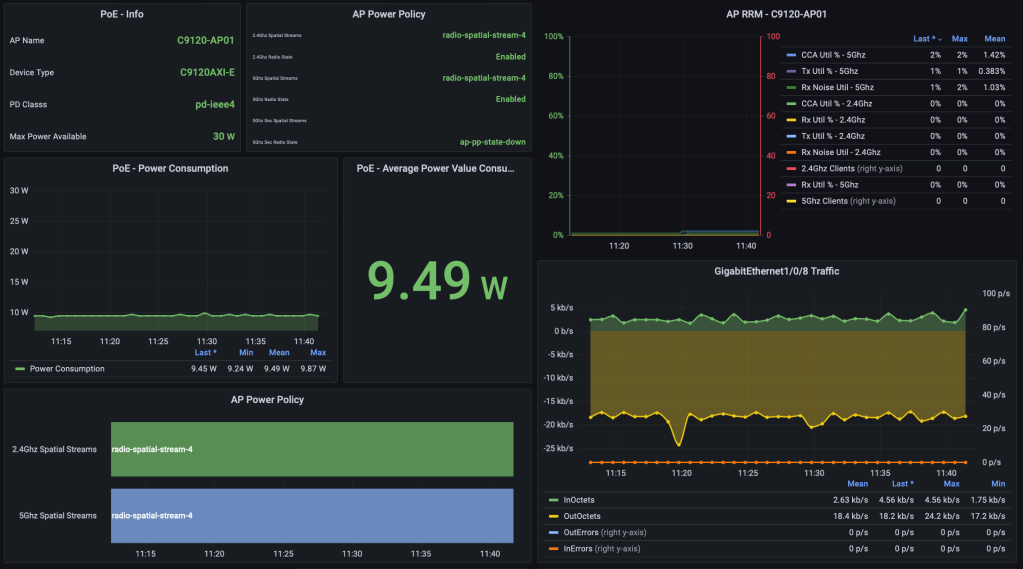
The C9166 is using an average of 12W with zero clients joined to the AP.
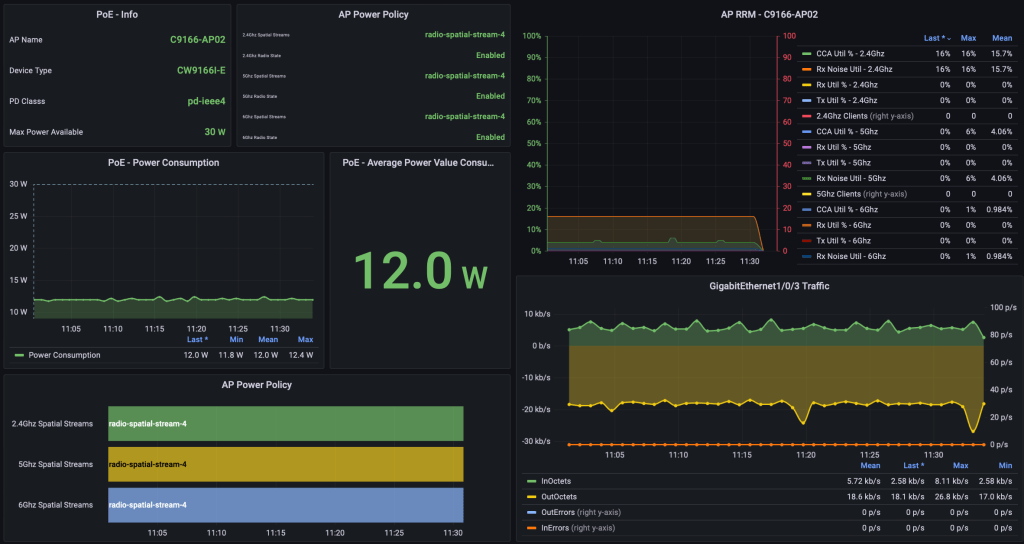
The 9136 (keep in mind that it is in .3at mode, and it would have used a lot more power if it was in .3bt mode with 4×4, 8×8, 4×4) was using an average of 15.5W.

Both 9166 and 9136 have the environmental sensors turned on, that can explain the small bumps in power.
EDIT 06.02.2023: 9136 in .3bt mode (1x6GHz only 160Mhz SSID and in a crowded 5GHz and 2.4GHz environment with sensors enabled is using around 16.1-17.5W)
Actual consumption
 Measured at the port: 16.6
 Maximum Power drawn by the device since powered on: 17.5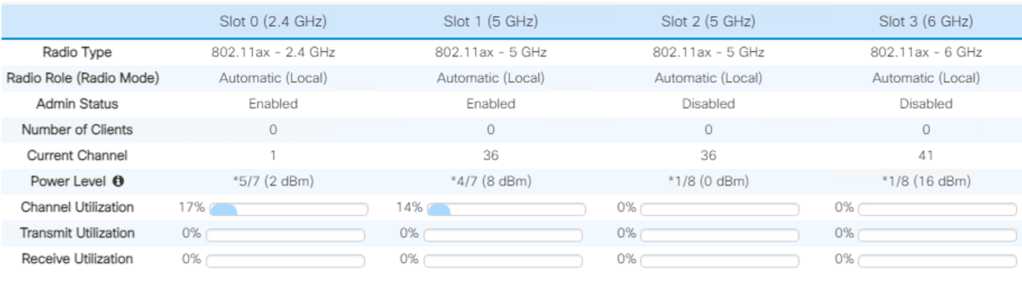
A few clients (iPerf)
If I join two clients (one on 5GHz, the other on 6GHz when possible) to the AP and start up an iPerf test, how much more power will the APs use? Both clients is 2×2.
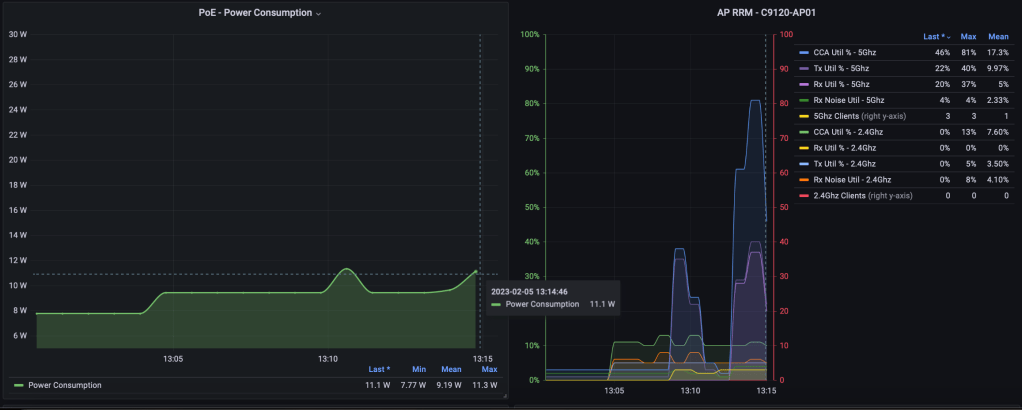
The 9120 I managed to peak at 11.1W, you can see that the AP reported the channel quite busy during this test.
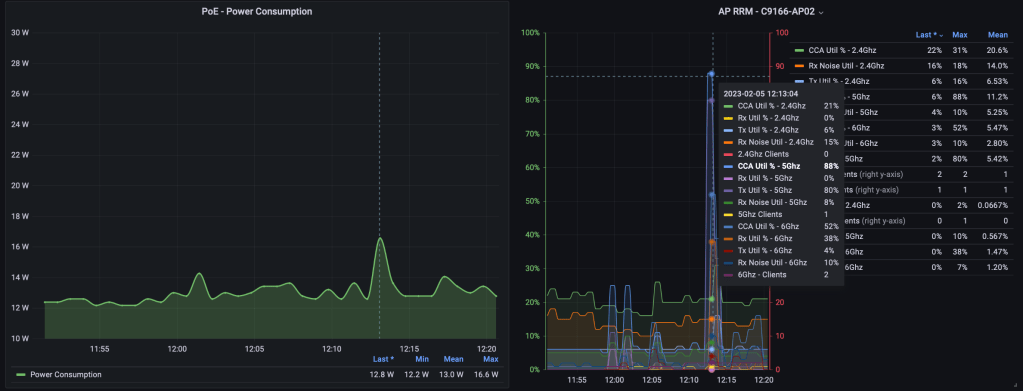
The 9166 in «normal mode» peaked at 16.6W, here 5GHz was reported to be 88% busy, and 6GHz 52% busy.
The 9136 in «normal» mode peaked at 18.7W with 5GHz and 6GHz being quite busy. Keep in mind that you usually do not see these kind of high values all the time since clients do not do these kind of tests at work normally. Usually just casual browsing and YouTube, TikTok and Snapchat.
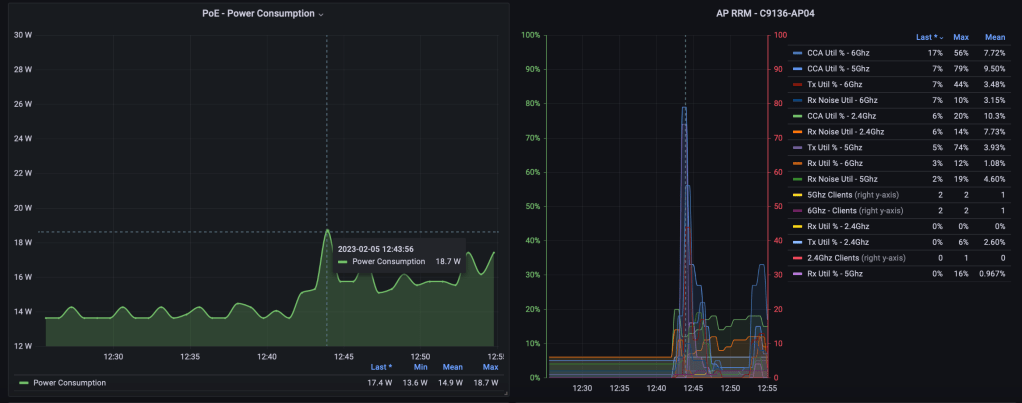
I need to emphasise that it REALLY depends on so many factors, like how good mcs values both clients have during the test, channel bandwidth and the amount of spatial-streams the clients have (usually 2×2), I am using 80MHz and 160MHz Channels. In an office environment you would not use 80 or 160MHz channels, but for testing power consumption using wider channels seemed like a good idea.
I got the AP to report the channel being busy at 80-90%, so I guess my numbers represent how much power these APs will use. But I am going to take a look at power-consumption on a few customer access-points that have way more clients joined to their APs than my 2 clients.
Nevertheless, my iPerf test is more heavy on the AP then 30 clients not doing anything.
Turn off the SSID
This does not help much, since the radios will still be on. All clients will be disjoined, so it is the same as sending your employees home. The amount of power will be the same as when the AP is in idle mode. The only clients left if every employee or student went home would be stationary clients that maybe are doing firmware upgrades over wireless at night, so this is not the best option.
Also If you had a IoT SSID that would most likely not be a good idea to turn off, if for example you had robot vacuum cleaners using that SSID
Turn off all radios except 2.4GHz
I kept 2.4GHz on in 1×1 mode for this test, because of IoT devices like the robot vacuum cleaners I mentioned that will keep the floor nice and clean during the night for example.
The 9120 dropped from down from 9.45W to 8.19W with only 2.4GHz in 1×1 mode enabled, 5GHz is disabled (but in 4×4 mode).

The 9166 does not seem to have dropped so much either, you see it dropped when I turned 5 and 6GHz radios off and set 2.4GHz to 1×1, but you can see that it had the same value a bit earlier in this graph with all radios in 4×4 mode. Still a bit lower now than it was earlier in idle mode, around 1W lower in average.
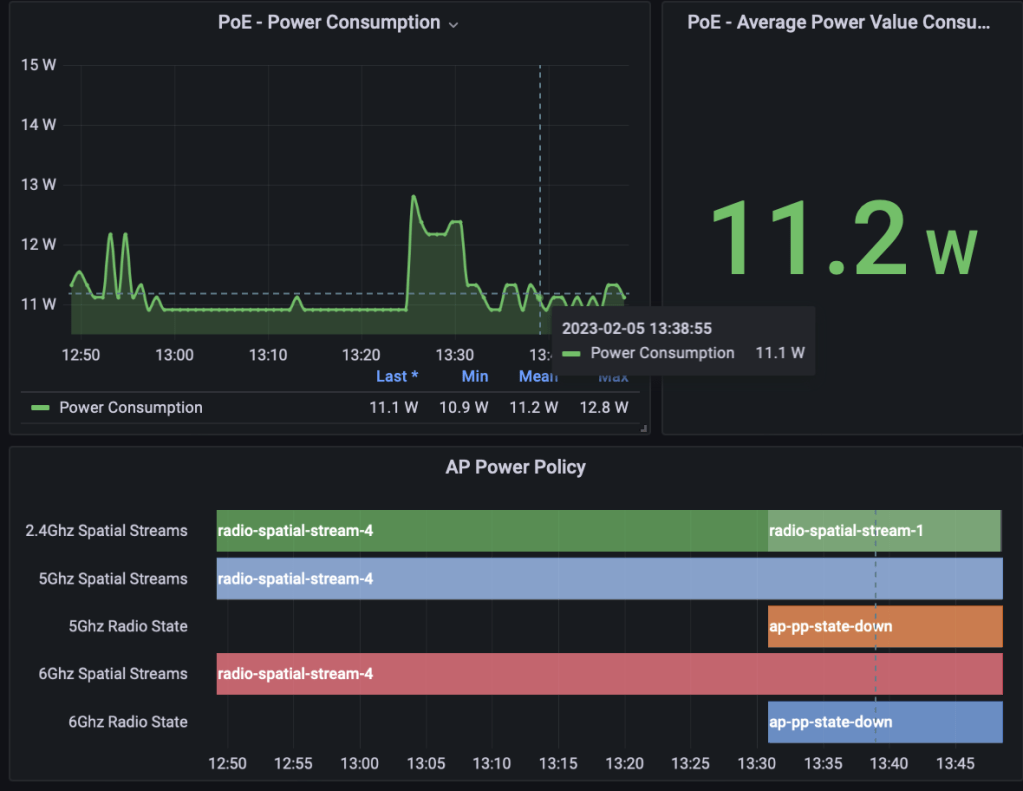
You see the same with 9136. Now it is around 14.3-14.5W, around 1W lower than it was earlier in idle-normal mode.
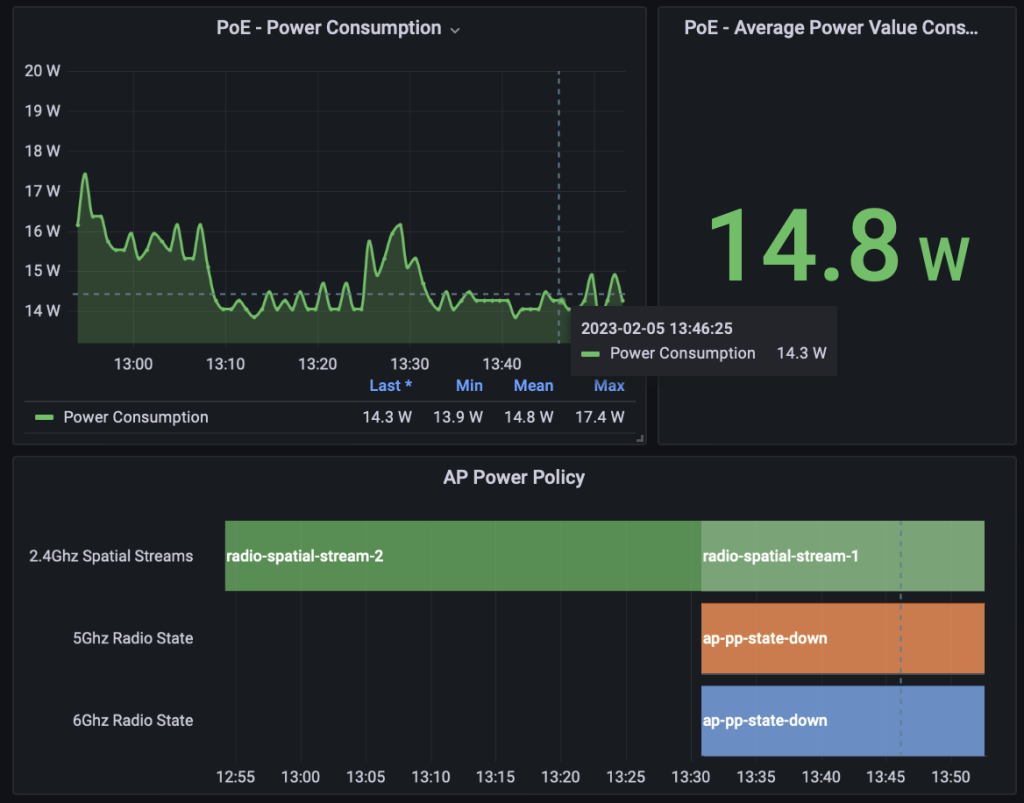
It looks like that turning radios-off does actually save a little, If I had turned off all radios I would had probably saved a bit more. It could also be that most savings was because I changed the 2.4GHz from 4×4 to 1×1.
So let us look at that next.
Low-power-mode
Last of my test is to change all radios into 1×1 mode. I guess then we will se the most drop in power. In 1×1 mode you can still get a mcs (data rates) that is higher than 100Mbps, so during an iPerf test in 1×1 mode I will also change the speed of the interface to 100Mbps.
I am not sure if changing the Ethernet speed actually works in this release. (see below)

So to end this blog, here is 9120, 9166 and 9136 in low-power-mode (1×1 on all bands). First up is the 9120, here I have changed from 4×4 mode to 1×1 mode.
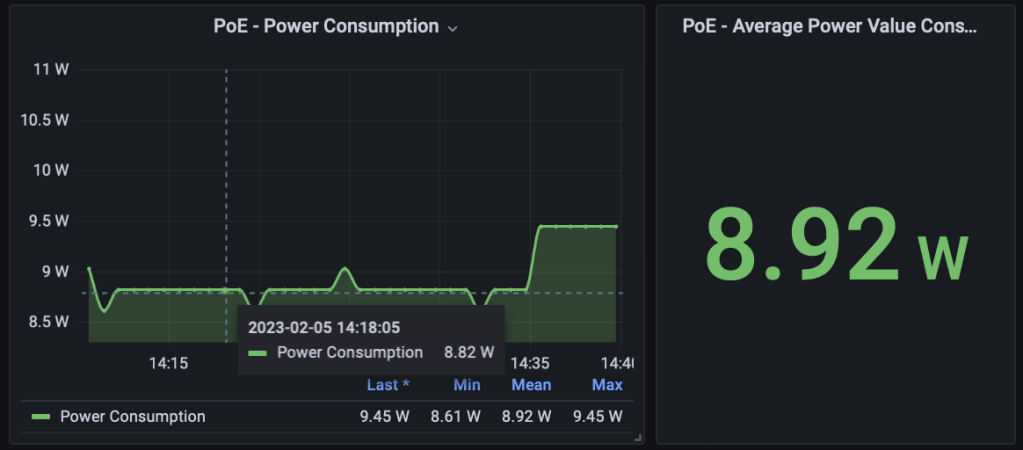
Remember that the AP in 2.4GHz only mode with 1×1 the AP was using around 8.19W, now with both radios enabled in 1×1 mode the AP is using 8.82W. You can see when I enable 4×4 again, then it jumps back to 9.45W. Not much to save.
Then we have the 9166. You can also here see when 4×4 mode was activated. At this time the AP was using at arounds 12.4W in 4×4 mode (earlier it was stable at around 12W). Now in 1×1 mode it is using around 10.7W, that is basically the same when 5 and 6GHz was turned off and only 2.4GHz in 1×1 mode.
But we still save around 1-1.5W by turning all radios into 1×1 mode.
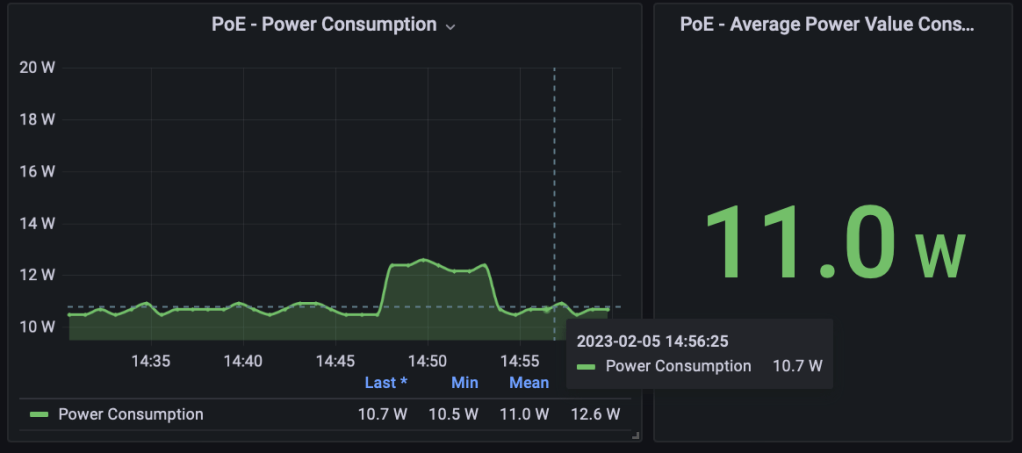
Then we have the power-hungry 9136 that used 15.5W in idle mode earlier, but in 1×1 mode it is using 14.4W on average. Again, around 1W.
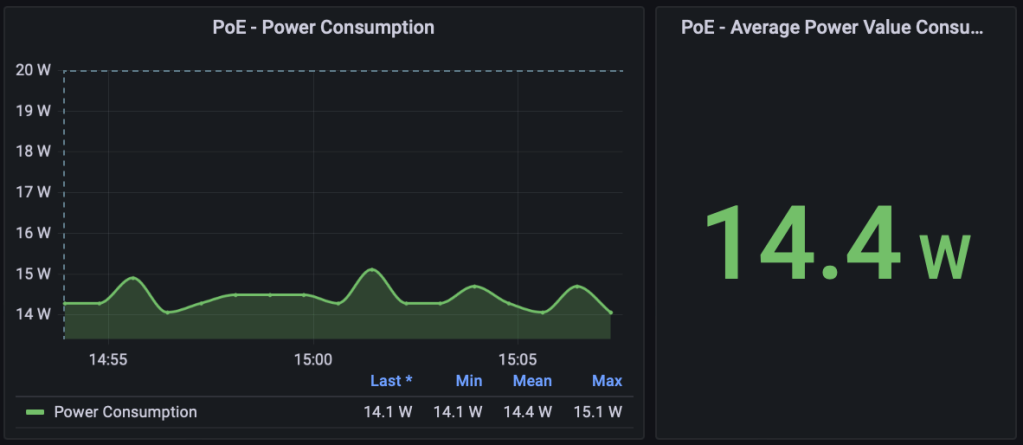
EDIT 06.02.2023: 9136 in .3bt mode (4×4, 8×8, 4×4, sensors, USB) was using an average of 17W in «idle» mode with no clients.
Actual consumption
 Measured at the port: 16.6
 Maximum Power drawn by the device since powered on: 17.5
Last, just for fun. iPerf in 1×1 mode.
The 9136 jumped up to 15.5W and the 9120 jumped up to 9.87W. Basically the same amount of power that they use in normal mode. But this iPerf test was not as good as the first one, mainly because I only have them in 1×1 mode. I most likely could have gotten it to use a bit more power with a bit more time to test.
My iPerf test maxed out at around 250Mbps. So to save even more in 1×1 mode, the Ethernet speed also needs to work so it goes down to 100Mbps in low-power-mode. Then with 1×1 and far less speeds than 100Mbps, clients can enjoy WiFi like it was 2003.
My thoughts.
The amount of power an AP is using, being it 9120, 9166, 9136 is pretty stable when no clients is associated to them, and when the channel is not very busy. So turning off the SSID does the same as sending your employees home (but it depends on how busy each channel is from nearby radios, and stationary clients etc.)
Changing the spatial stream, or disable the radios on the other hand, and changing the ethernet speed so clients cannot end up using more than around 90Mbps even with a better mcs will most likely save you more power.
But in In my test I do not save as much. When I look back at Grafana I see that I save around 1-2W in average when I change it from 4×4 to 1×1. So If I had 1000 APs, that is 1000-2000W. For a huge building 2000W is just a small, small percent of the overall power they use to heat or cool down the building. In other words, there is not much to power to save here other than the environment.
For a school with 10 000 clients, then when those same clients go home we already save power since the access-points are not as busy anymore.
Keep in mind that my findings would most likely be very different if my APs had more clients joined to them, and if the channel was more active. I will try power-save for one of my customers to see more real world numbers!
Blog will be updated with «EDIT DD.MM.YYYY» whenever I have more data.
In short, turn off the lights before you go home or shut down the port. Then you really save power!
Take a look here for more info on how you can setup PoE monitoring like this. https://github.com/jeremycohoe/cisco-mdt-poe/
 Wireless TechDectives
Looks like a marketing gimmick so Cisco can claim they care about the environment. Good read though!
LikerLiker