As promised, here is yet another small blog post about the Meraki API and Apple Shortcut. Today I will learn you how to block a client by saying «No Wifi for me» by utilization the Meraki API and Apple Shortcut.
First of all, I recommend loading up the Meraki API collection to Postman (Postman is an API platform for building and using APIs) to test it there first before using Shortcut on you Apple device. Read about this in my other blog post here. (Skip the intro, and read from «First you enable API access and get the API key.»)
- First add the network.Id to your list of variables in Postman
In my other post we already talked about different variables, like the API key, baseURL (you need to use the url-shard (nxxx.meraki.com in the Shortcut app), Organization.ID. Now we need to get the network.id.
Well, this was easy. Use this to get the network.id, orginization.id and the url-shard. The network.id starts with an «L_».
{{baseUrl}}/organizations/:organizationId/networks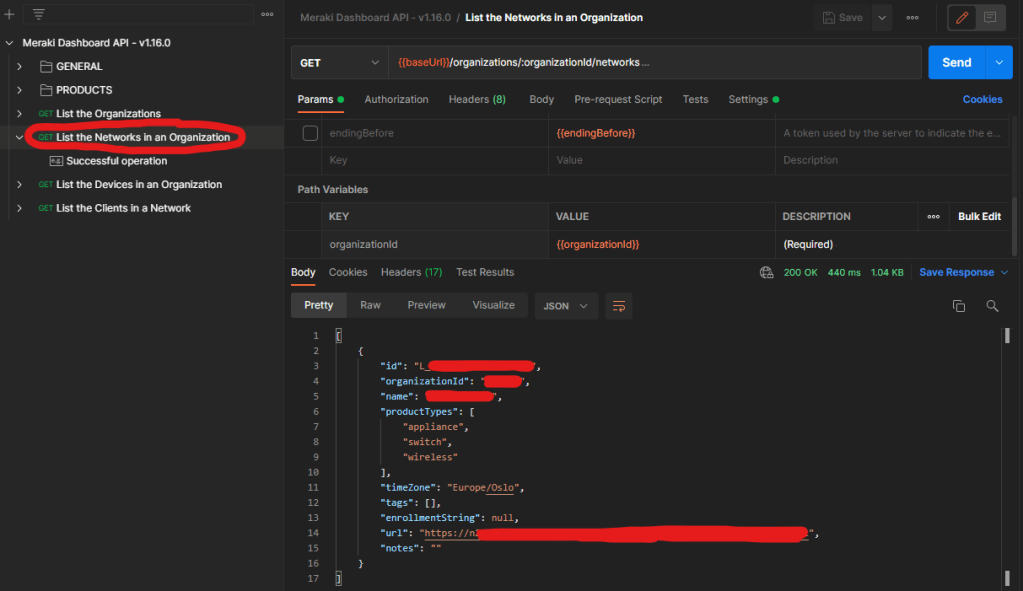
- Now your variables should look like this:
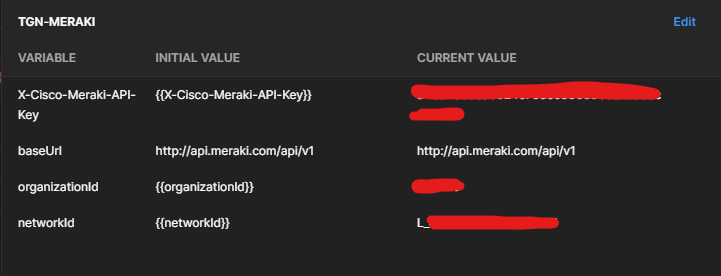
- Next up is to list all the clients in your network to get the id|mac
Here you will se that each client has an id, and you can use the id or the mac:adr to do changes.
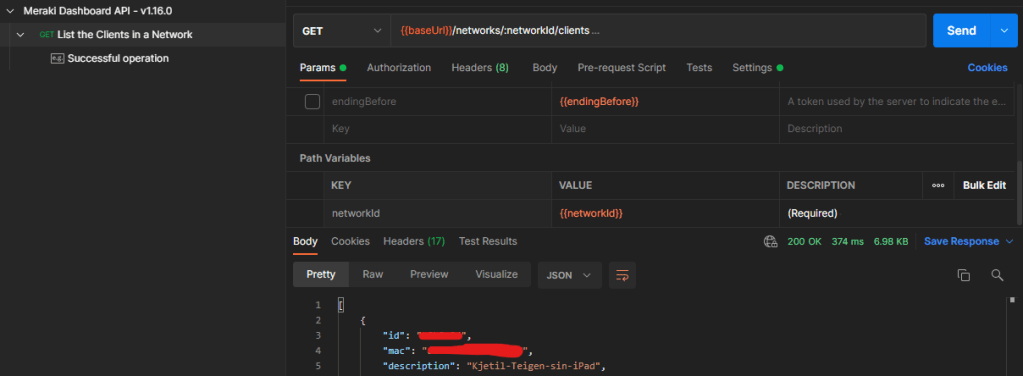
One big question is, will the id change if you change the mac:adr? YES. In other words, you can just turn off private mac:adr (on by default) to get a new Id.
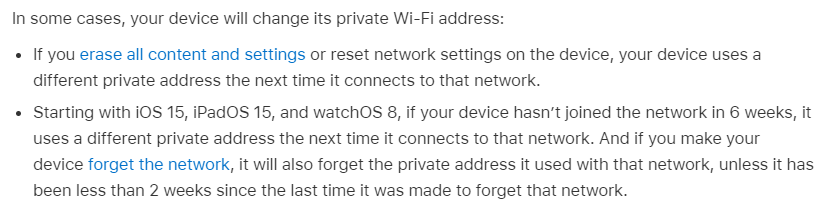
The private mac:adr will also change if an Apple device hasn’t joined the network in 6 weeks. Read more about private Wi-Fi addresses on iPhone, iPad, iPod touch, and Apple Watch here.
- Get the current policy from your test client
Valid possibilities are «Whitelisted«, «Blocked» and «Normal«
{{baseUrl}}/networks/:networkId/clients/"client.ID|mac"/policy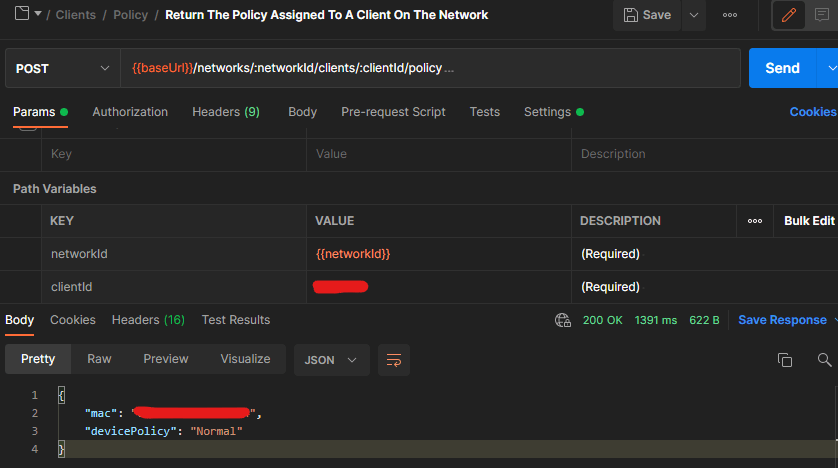
- Now you can use «PUT» in Postman to change a client from «Normal» to «Blacklisted»
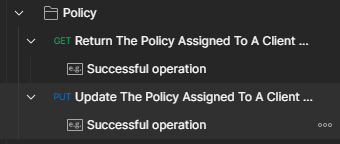
This is to easy, now let us use Apple Shortcut to block my phone from my own network.
- Open Apple Shortuct, and use «Get contents from» and add the following. (Update this with the correct url, network.id and client id|mac)
https://nxxx.meraki.com/api/v1/networks/"network.id"/clients/"client_id"/policy- Change the Method to «PUT» (now Request Body opens)
- Add a new field in Request Body (JSON).
devicePolicy - Blocked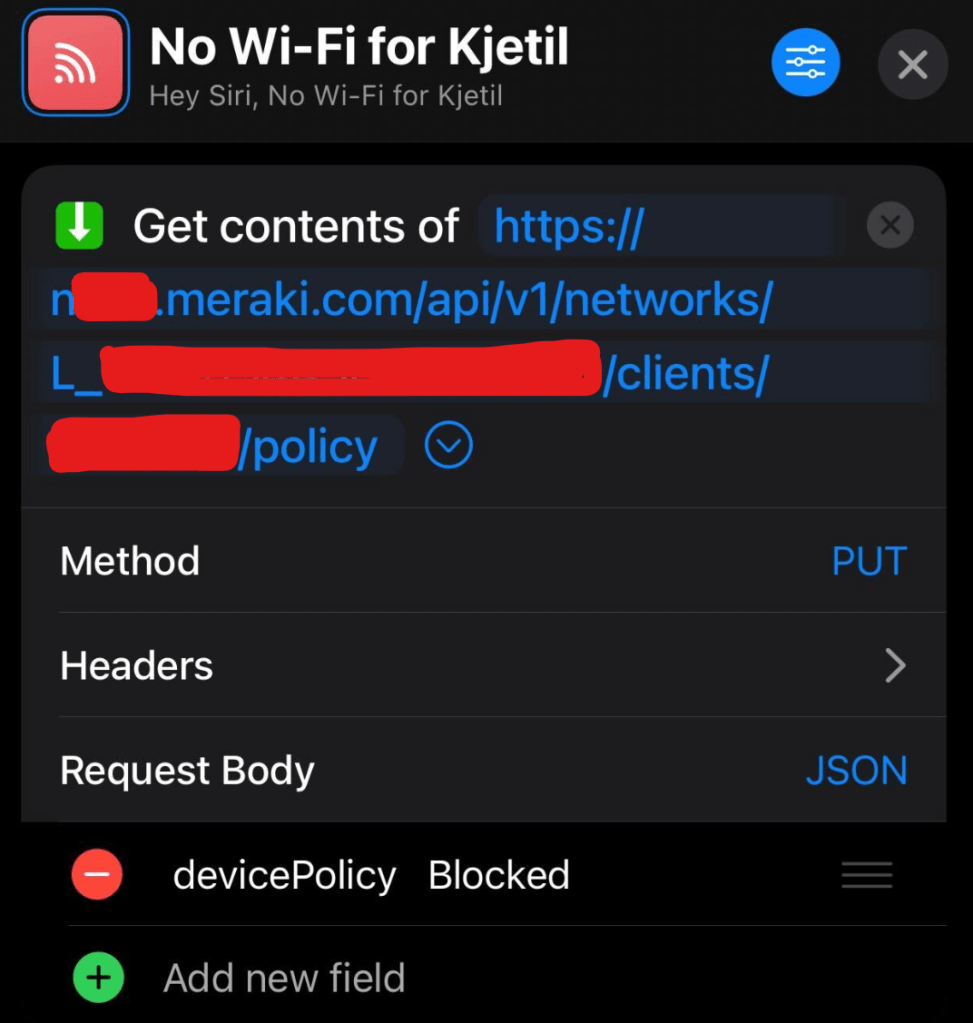
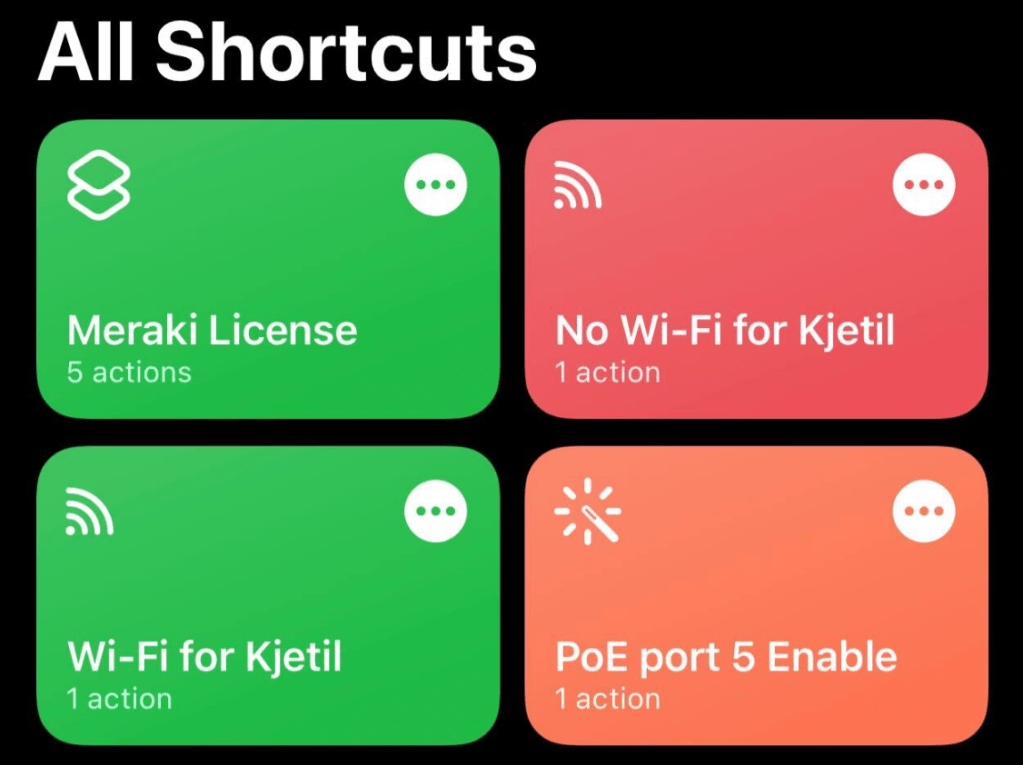
- Now, will it work? Well, Siri does not understand «Kjetil» had to change it to No Wi-Fi for me» – then it worked!

The policy change took a second to change! I also had to play a bit around with the name of the Shortcut because Siri does not understand it all. You can start with «Shortcut – «shortcut-name» or just change the name of the Shortcut.
I hope this unnecessary shortcut was interesting. I highly recommend playing a bit with Apple Shortcut. Yesterday me and my kid created a shortcut where Siri says something weird when the battery is less than 25 percent so he remember to charge.
Happy New Year!

