Now this is a topic you really want to read about right? Well, no! But keep on reading. You can read more on how I set this up the first time here, but maybe not since I will go over it again in a more structured way in this blog post.
I will try and make smaller posts about more unnecessary things you can do with the Meraki API in 2022 so get ready for some fun.
With the Meraki API you can easily get all kinds of information from your network, and of course you can use it to configure your network also. For example you can use the API to disable the SSID before dinner and get your kids to run down the stairs in record time. Add Siri into this, and you can just say «dinner time» and the SSID will be disabled. Take a look at the APIs available here: Meraki Dashboard API – v1.16.0
In this post we will take a look on how you can get the license information, and create an automation on your iPhone so Siri can run this automation every day 7 days before the license runs out. Because, why not.
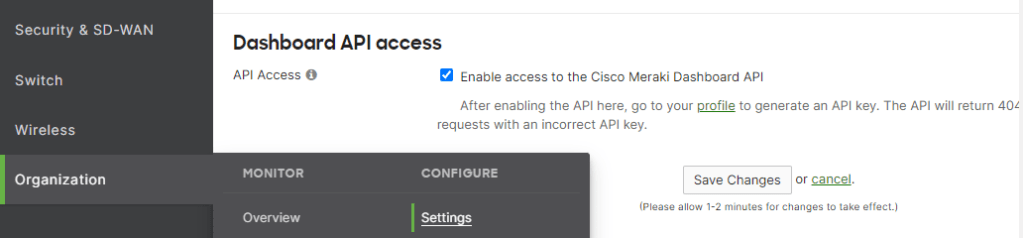
- First you enable API access and get the API key.
- Next up is to add the API collection to Postman

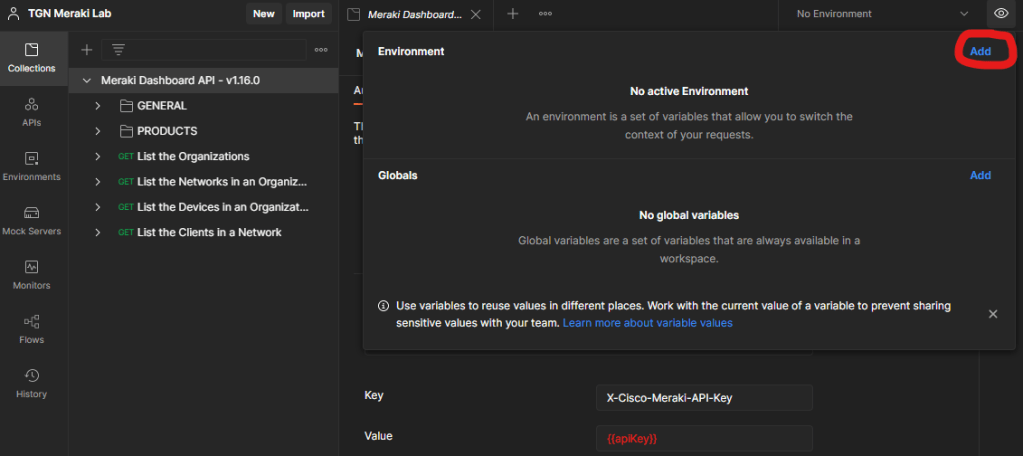
- Next up is to create an environment where you need to add the API, press the little eye icon and then press Add. You may also need to change the variable value under the main Meraki dashboard.
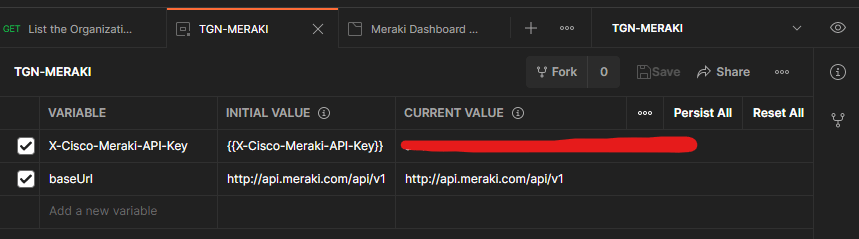
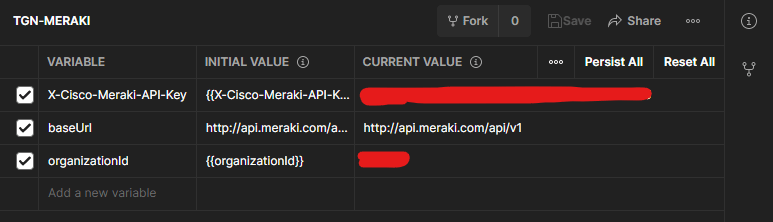
- This is how my environment looks like.
- X-Cisco-Meraki-API-Key – {{X-Cisco-Meraki-API-Key}} – «API-KEY»
- baseUrl – http://api.meraki.com/api/v1

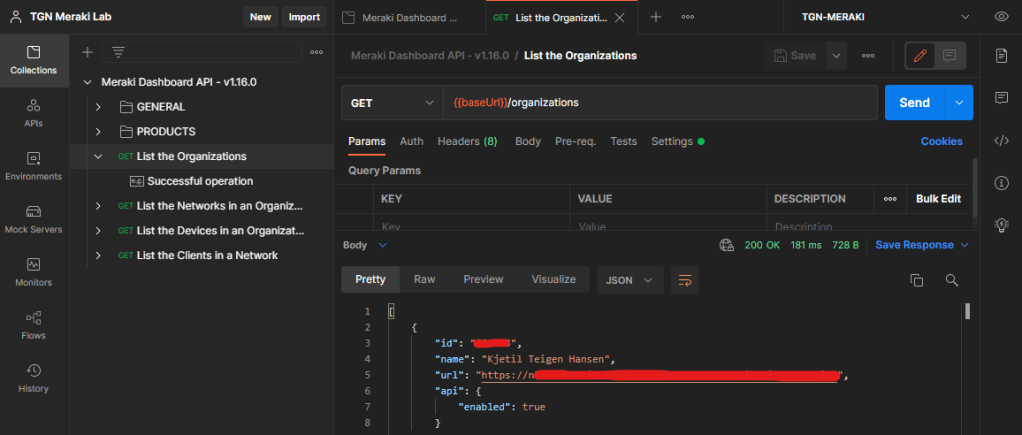
- Next up is to get the OrganizationId that you will need later. For this just press the «List the Organizations» and you will get the «url-shard» (nxxx, this is the same URL you see when you are logged into Meraki) and the «org-Id».
- Now you need to add the OrganizationId to your environments.
- organizationId – {{organizationId}} – «id»
- To get an overview of your license you can now use the «Return an overview of the license state for an organization» and press Send.
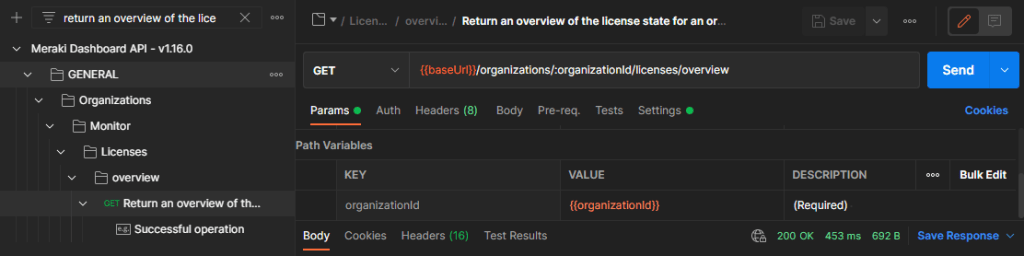
- The information will look like this, and for our little test we want the expiration date.
{
    "status": "OK",
    "expirationDate": "Apr 21, 2023 UTC",
    "licensedDeviceCounts": {
    }
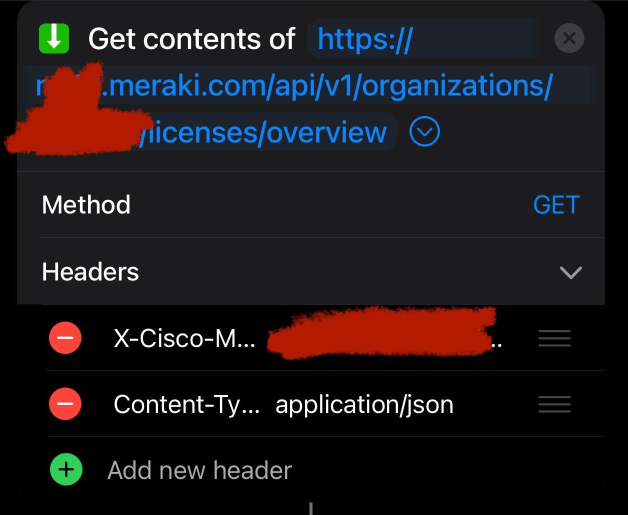
}- Now we are going to use Apple Shortcut to get the same information, and make groups of each item. But first you need to add the API key and Content-Type
- Use «Get contents of https://«url-shard».meraki.com/api/v1/organizations/«org.id»/license/overview
- Press the «arrow» and add the following headers
- X-Cisco-Meraki-API-Key – «API-KEY»
- Content-Type – application/json
- Use «Get contents of https://«url-shard».meraki.com/api/v1/organizations/«org.id»/license/overview
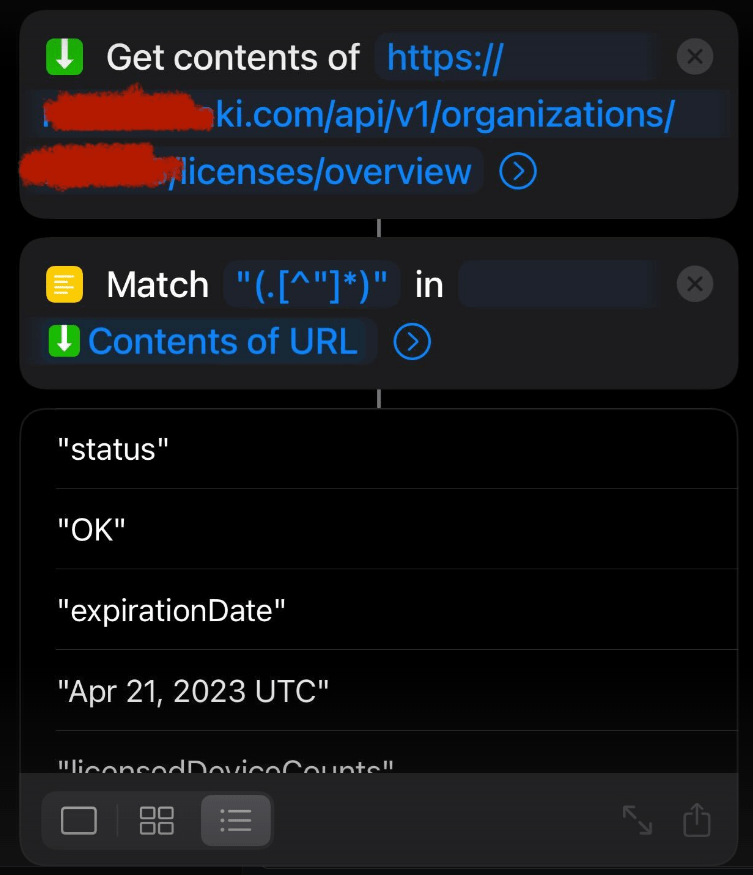
- Then use – Match «(.[^»]*)» in Contents of URL and run the shortcut.
- You see here that you got the same information as «groups» and that the date is at index number 4 in this list|group.
- Then you use «Get item from list» and change the variable to «Item at Index» and change the value to 4.
- Use the Text and add a personal text and use the variable «Item from list» at the end.
- Then add a «Speak» with the variable «Text»

Voilà – it works!
- Now you can automate this unnecessary shortcut to run at 10 AM every day from the 14th of April 2021. You create automations in the Shortcut app also.

This was it, thank you for reading. This was probably not very useful, or maybe it was because here I showed you how you can create random things with the Meraki API and use Apple Shortcut to automate it, and Siri to speak it without me asking about it.
 Wireless TechDectives