I often do roaming analysis, and this has been quite easy with Metageek Eye P.A where you can add 6-8 adapters and follow a client (usually a voice client, or client drivers that fix or break FT) to do roaming analysis. Validate things like FT (if supported), what band it prefers and how long it takes to roam between access-points.
The problem!
Then we got 6GHz, and roaming analysis got more interesting. Customers is buying 6GHz access-points like it was milk and bread and I was in a hurry to learn more about how clients that support 6GHz will roam with different types of config. Not only that, enterprise solutions like Cisco, Aruba and Juniper add more support for new things that also needs testing.
The solution!
WlanPi-R4 with 6x6GHz USB adapters so I can capture on 3x6GHz channels and 3x5GHz channels, and one extra USB adapter on a 2.4GHz channel just for fun. Because clients like Apple do not support a 6GHz only SSID, so I have to see if it roams between different bands since it has to use RNR to learn about 6GHz.
What you need:
- Raspberry Pi R4 (WlanPi R4)
- Powered USB HUB (5V 3A)
- I bought this one from Kjell.com
- Barrel plug to USB-C (one that fits the powered USB HUB)
- Powerbank with an output of 5V 3A (Important!)
- I bought this one from Clas Ohlson
- Gjermund, if you need some clay, buy it here (Thanks)
- I bought this one from Clas Ohlson
- Many USB adapters.
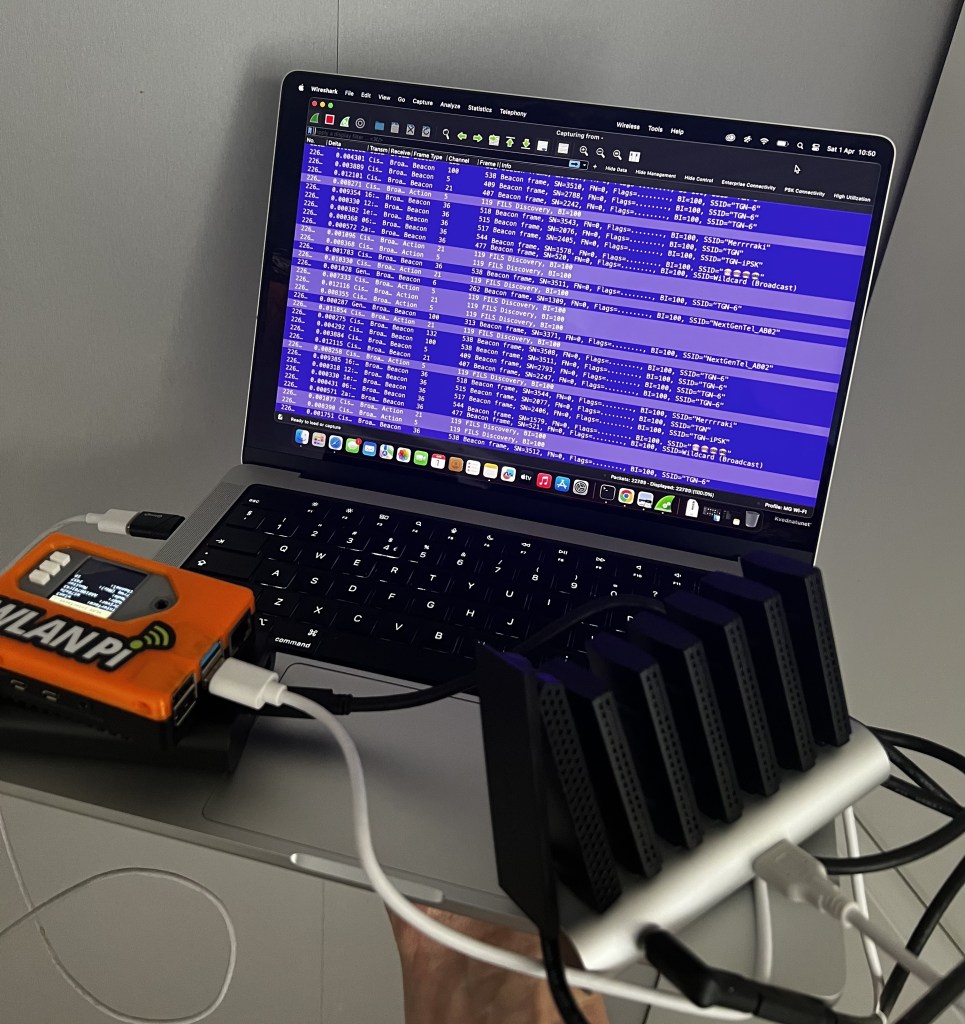
Step 1.
Add all the USB adapters you can fit (I have 6x Comfast and 1xNetgear 6210), and power the USB-HUB with the Powerbank using the barrel-plug to USB-C.
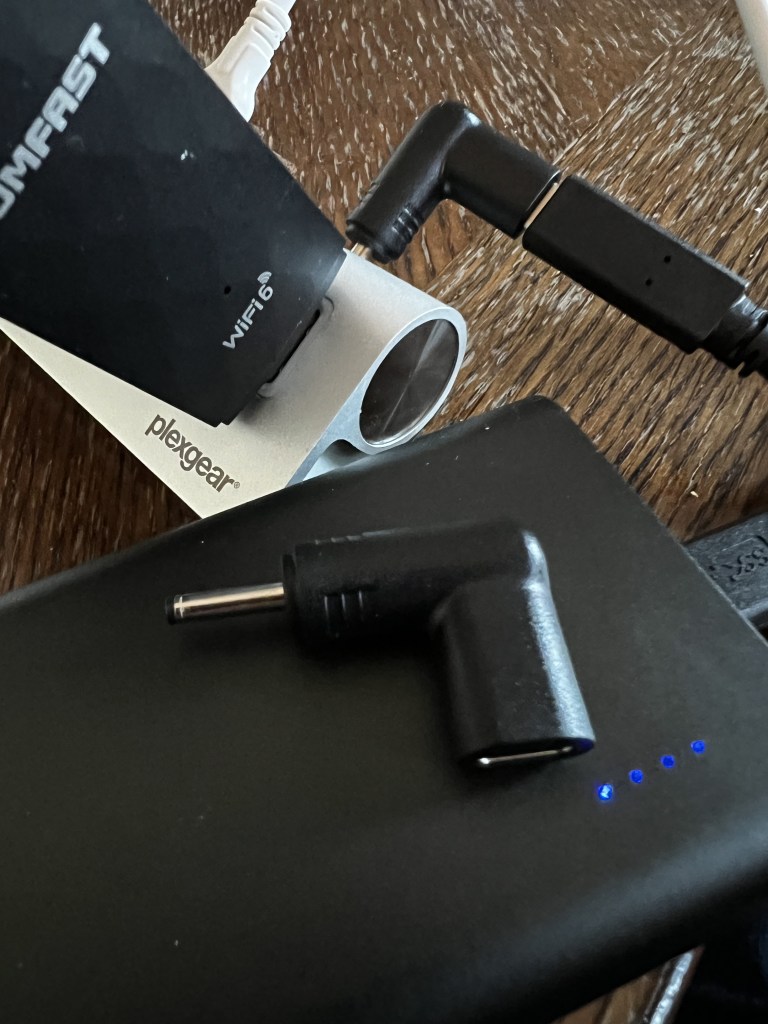
Step 2.
Connect you WLANPi-R4 with USB-C to your Macbook (I will use AirTool, that is why I only mention a Macbook). Wait for it to boot completely.
Step 3.
Connect the USB-HUB to the lower USB 3.0 port on your WLANPi and wait for 45-60 seconds for the WLANPi to enable the drivers for all adapters.
Note! If it takes too long, remove the USB-C port from the HUB and «reboot» the HUB by removing the power bank. Then connect it back to the WLANPi. If that not works, power-down the WLANPi and power it back up. (Basic IT troubleshooting, I believe in you!)
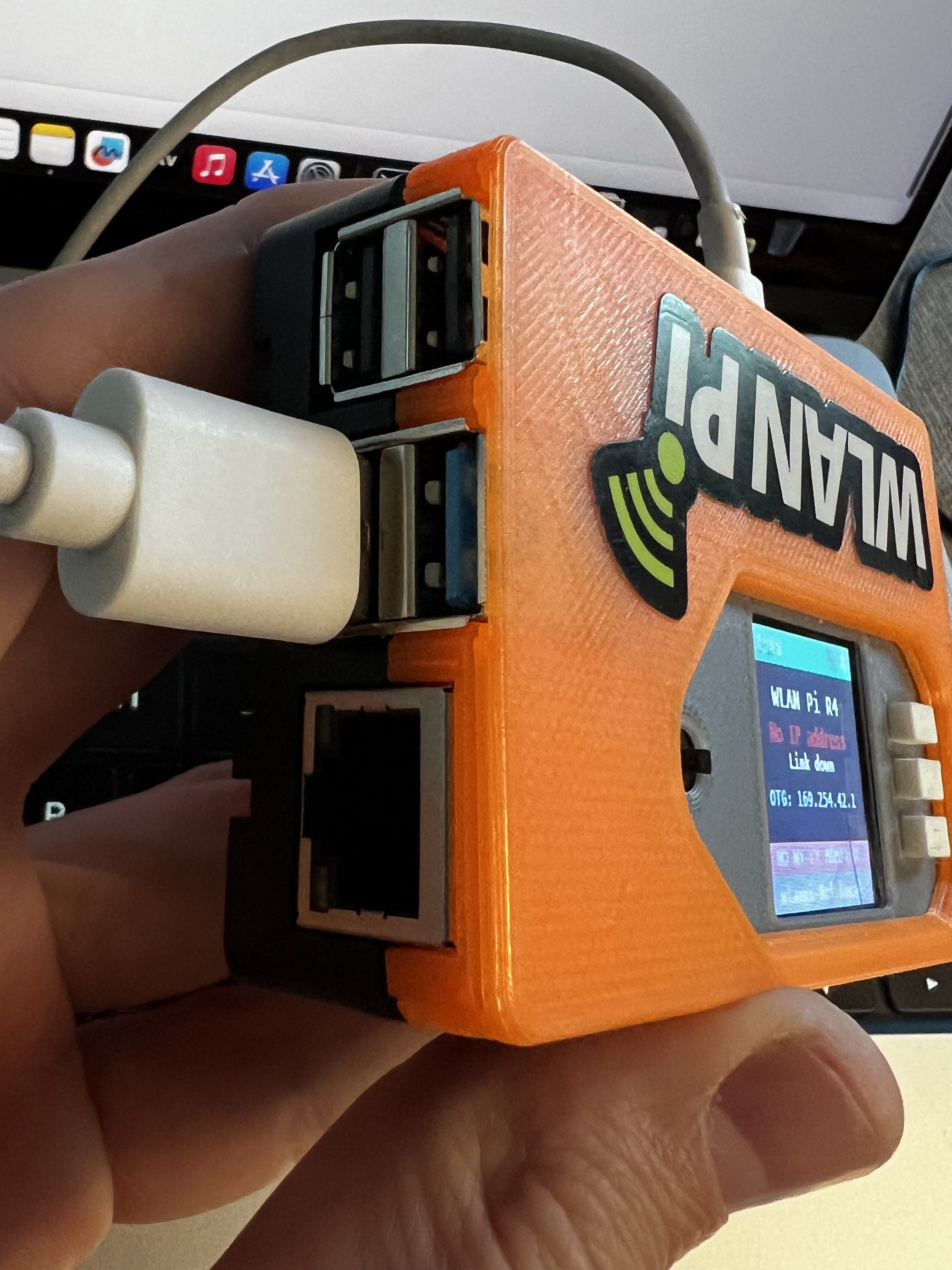
Step 4.
Use AirTool to check if everything works. This test is pretty slow if the Raspberry Pi is still loading all the adapters.
Connecting over SSH to 169.254.42.1 on port 22: OK
Checking ifconfig: installed
Checking iw: installed
Checking ip: installed
Checking tcpdump: installed
Checking airmon-ng: installed
Checking existing WLAN interfaces: wlan0 wlan1 wlan2 wlan3 wlan4 wlan5 wlan6
Checking wlan0 status: available
Checking wlan0 monitor mode (iw): supported
Checking wlan0 monitor mode (airmon-ng): supported
Checking wlan1 status: available
Checking wlan1 monitor mode (iw): supported
Checking wlan1 monitor mode (airmon-ng): supported
Checking wlan2 status: available
Checking wlan2 monitor mode (iw): supported
Checking wlan2 monitor mode (airmon-ng): supported
Checking wlan3 status: available
Checking wlan3 monitor mode (iw): supported
Checking wlan3 monitor mode (airmon-ng): supported
Checking wlan4 status: available
Checking wlan4 monitor mode (iw): supported
Checking wlan4 monitor mode (airmon-ng): supported
Checking wlan5 status: available
Checking wlan5 monitor mode (iw): supported
Checking wlan5 monitor mode (airmon-ng): supported
Checking wlan6 status: available
Checking wlan6 monitor mode (iw): supported
Checking wlan6 monitor mode (airmon-ng): supported
Diagnostics completed.
Step 5.
Now use Multi-Souce Capture in AirTool. If you are using an adapter that does not support 6GHz you can use the screen on the WLANPi to navigate to the WLAN Interfaces to see what USB adapters is, in my case the AC6210 adapter.
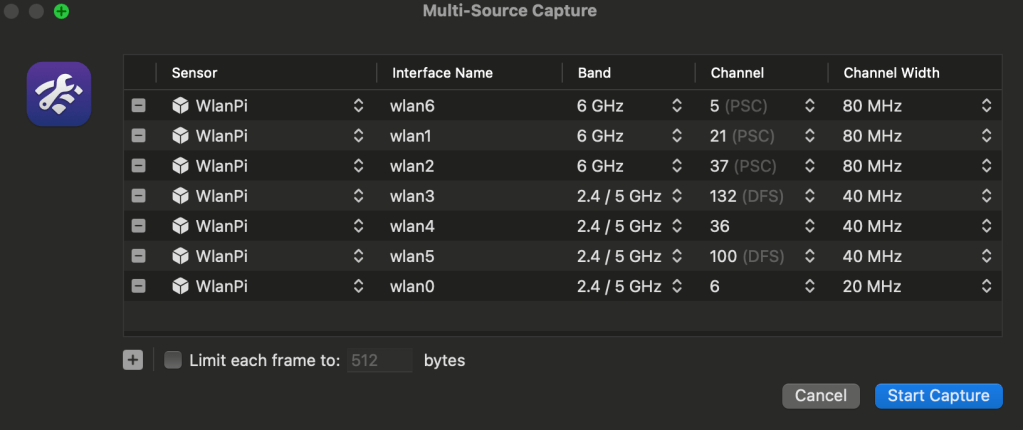
Step 6.
Press «Start Capture»
You can use the on-screen display on your WLANPi to see if each interface is on the correct channel. (Yes, I will remove the protection – have fun OCD people)
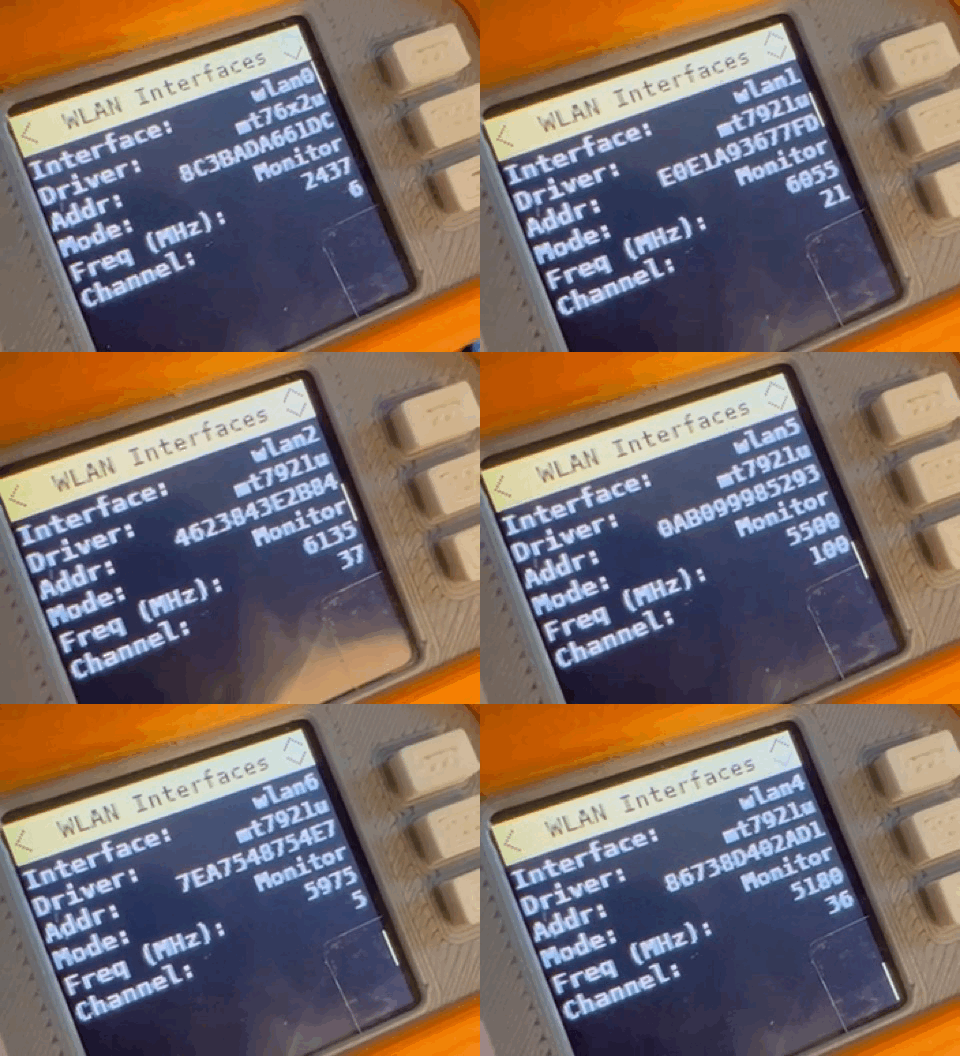
Sometimes it happens that the AirTool.lock files for the interfaces is not removed, if this happens you can delete them in /tmp/
How does it work
Well, it works. Sometimes it does not, but then you just have to use your basic IT troubleshooting skills to fix it. The important thing is to have a power bank that can provide 3A to the USB HUB (If the HUB is 5V 3A) and that you power the USB HUB before you connect it to the WLANPi.
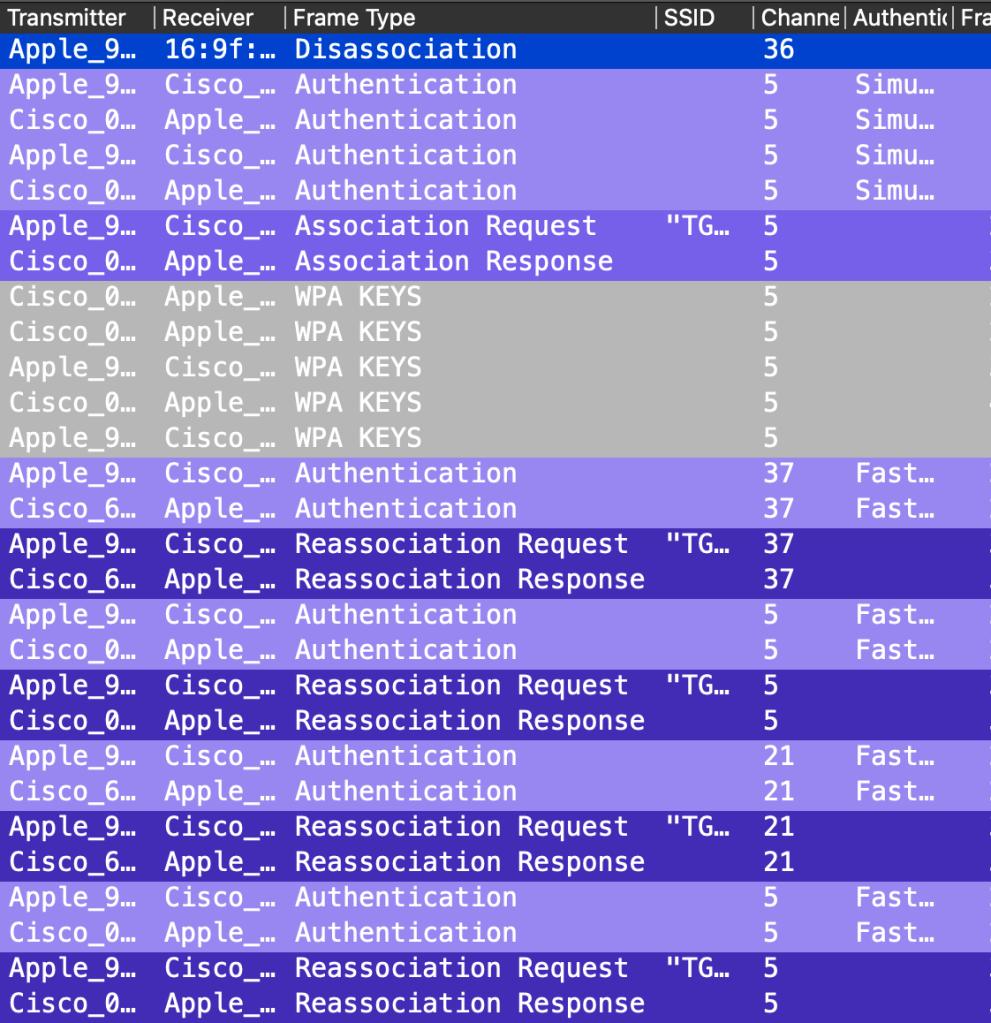
I was able to capture multiple Fast Transition roaming on 6GHz with my Macbook and did not miss a single frame. But that does not mean I missed other types of frames. The important thing is that I was able to capture the thing I was supposed to capture.
What’s next!
In my next blog I will do more roaming analysis on 6GHz. Sometimes things does not work as it should, but if you give your head some fresh air you will end up fixing it in a couple of minutes. 😉
 Wireless TechDectives