Like many of you know, I got my first 6GHz access-points around 1 year ago and like many others I had already upgraded my Windows computer with the AX210. Now that Apple has new WLAN card on their MacBook Pro with 6E support, I thought it was a good idea to see who does it better.
Because the first few months with 6GHz, bad drivers and early version of Windows 11 gave me a lot of headaches! Hopefully things would work a lot better now, because there is nothing like being associated to 6GHz with a stable mcs10 during a meeting before it disassociate and then Windows asks me to type in the password again, but that fails over and over again.
Yes, you read that correctly. My work computers is connected to my 6GHz lab all day long. Because why not.
In this blog I will first go over the basics, like how my SSID is configured so the tests I am doing will make a bit more sense. I will also provide a quick explanation about RNR (Reduced Neighbour Report), FILS (Fast Initial Link Setup), Broadcast Probe Response and PSC (Preferred Scanning Channels).
After that I will do a few tests with MacBook or a Windows 11 laptop to see what they do when they join an SSID with 2.4, 5 and 6GHz and 6GHz only.
This is a blog about me testing stuff, so please be aware of things that may not happen when you test the same things.
I will use the following equipment:
MacBook Pro 14 (Ventura 13.2.1), Lenovo X1 Yoga with AX210 (W11, Intel 22.190), Catalyst 9800 controller on 17.10, Catalyst 9166, WLANPi with 3xComfast USB adapters (CF-915AX).
Note! this is not done in a «lab» environment! Your experience my differ.
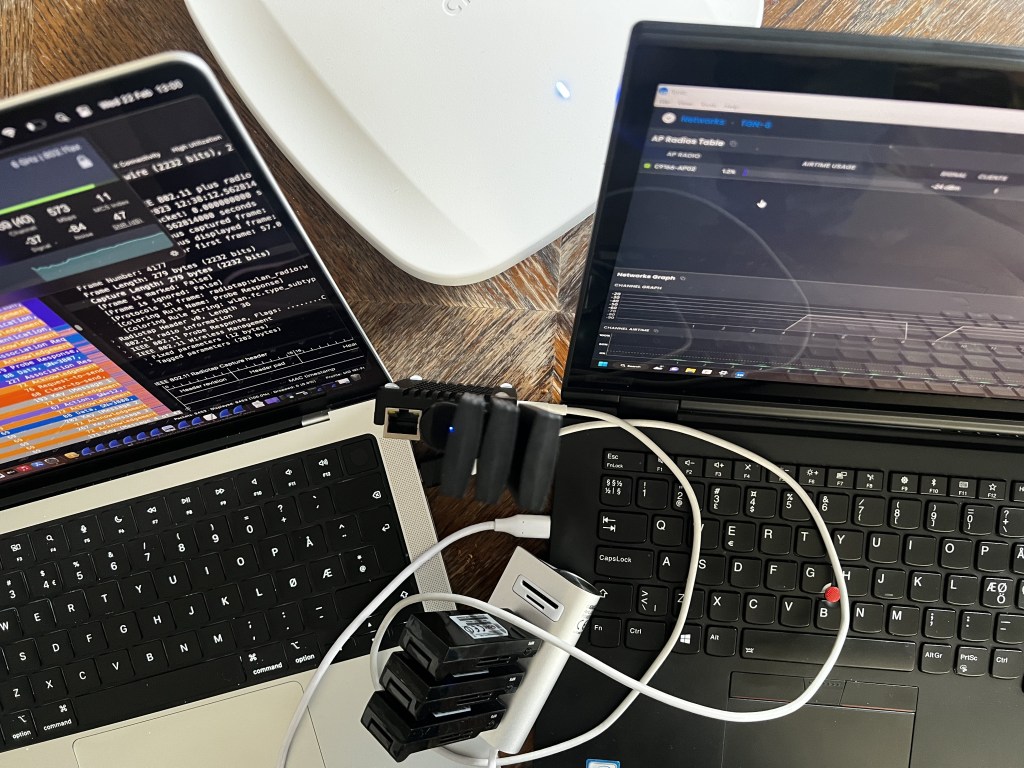
Table of Contents
- Table of Contents
- How clients find a 6GHz capable AP.
- My 6GHz SSID on the C9800
- AP Radio Configuration
- Test 1: 2.4, 5 and 6GHz enabled SSID with H2E and HnP
- MacBook – Test 1:1 – It works!
- Macbook – Test 1:2 – I broke it!
- Macbook – Test 1:3 – Trying to fix it!
- Macbook – Test 1 – Conclusion
- Windows 11 PC – Test 1:1 – It failed!
- Windows 11 PC – Test 1:2 – It works!
- Windows 11 PC – Test 1:3 – Does it still work?
- Windows 11 PC – Test 1 – Conclusion
- Macbook – Test 1:4 – A second chance
- Test 1: Conclusion
- Test 2: A 6GHz only SSID (H2E) and FILS
- Macbook – Test 2:1 – RNR to the rescue!
- Macbook – Test 2:2 – What about no RNR and FILS?
- Macbook – Test 2:3 – RNR and Broadcast Probe Response, WEP?!
- Macbook – Test 2 – Conclusion
- Windows PC – Test 2:1 – FILS
- Windows PC – Test 2:2 – Broadcast Probe Response
- Windows PC – Test 2:3 – non-PSC
- Windows PC – Test 2 – Conclusion
- Test 2: Conclusion
- Final Thoughts.
- What’s next?
How clients find a 6GHz capable AP.
6GHz opened up a lot more spectrum (500 (480) Mhz in EU, UNII-5, 1200MHz in US) that gave us a lot more channels to play with. But also a lot more channels for clients to scan that would waste their precious battery. Not only that, it would take a lot of time to scan them all (59 20MHz channels in the US). That is why a subset of the channels is identified as PSC, or Preferred Scanning Channels.

PSC – Preferred Scanning Channels
One solution if a client want to do an active scan on 6GHz is to not let it scan or probe all channels. That is why a specific subset of channels is identified as PSC or Preferred Scanning Channels
These channels is every 4th channel starting from channel 5. For UNII-5 every PSC is channel 5 , 21 , 37 , 53 , 69 and 85 that gives us 6x40MHz channels or 6x80MHz channels if we only used PSC.
So in a perfect world, all clients would act similar, right? https://www.jiribrejcha.net/2022/11/google-pixel-6-wi-fi-6e-scanning-and-6-ghz-ssid-discovery/
RNR – Reduced Neighbor Report
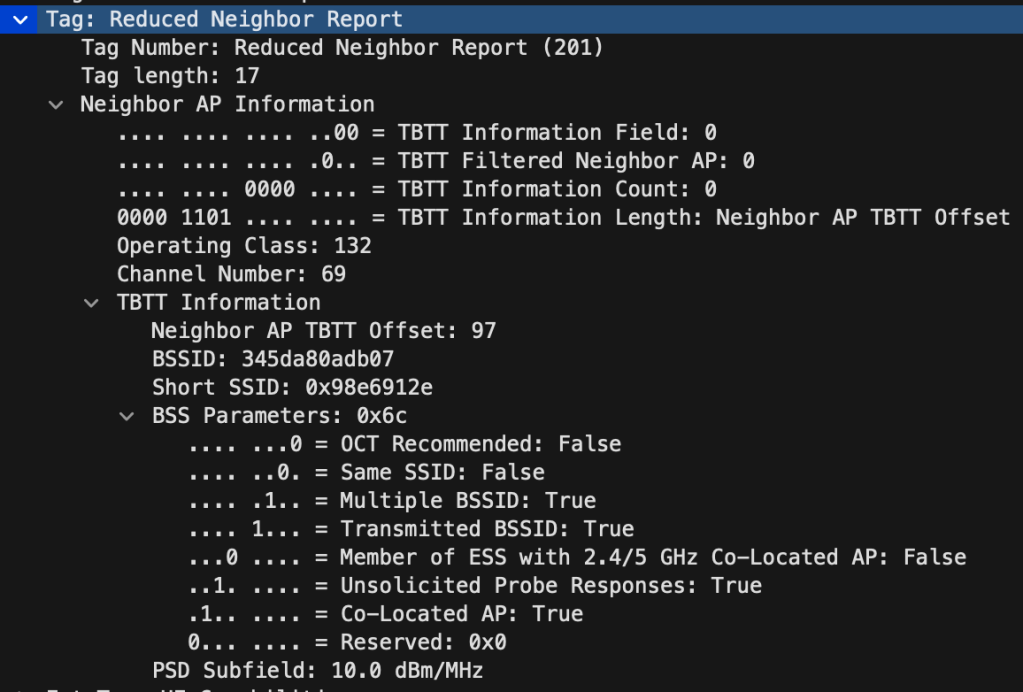
RNR is an informational element in the beacon that contains neighbour AP information, specifically 6GHz information. This information will help clients that understand RNR to discover a 6GHz SSID co-located on the same AP, by only listening or scanning 2.4 or 5GHz channels.
I have seen other RNR that contains information about actual neighbours also, but mine just contains the 6GHZ only SSID co-located on the same AP.
Rowell wrote a nice blog about RNR you can read here : https://rowelldionicio.com/reduced-neighbor-report-plays-a-critical-role-in-wi-fi-6e/
FILS – Fast Initial Link Setup
FILS is used when you only have a 6GHz only SSID and nothing else configured on your controller. Since then there will be no RNR for the client to learn from. FILS is a condensed beacon that is sent every 20ms to help clients that support 6GHz only SSIDs to find a capable 6GHz SSID within 100ms The frame is one third of the size of a beacon and contain only a small amount of information.

Broadcast Probe Response
This is another passive discovery mechanism but this is an entire Probe Response that you can configure to be sent every 5ms to 25ms (Default is 20ms).
Both FILS and Broadcast Probe Response can help clients find 6GHz access-points faster, within 100ms. They do this by only listening and not use time probing each channel, probing should in theory only be done on PSC channels.
One interesting thing about my Broadcast Probe Response, is that they do not contain any RSN information element?!
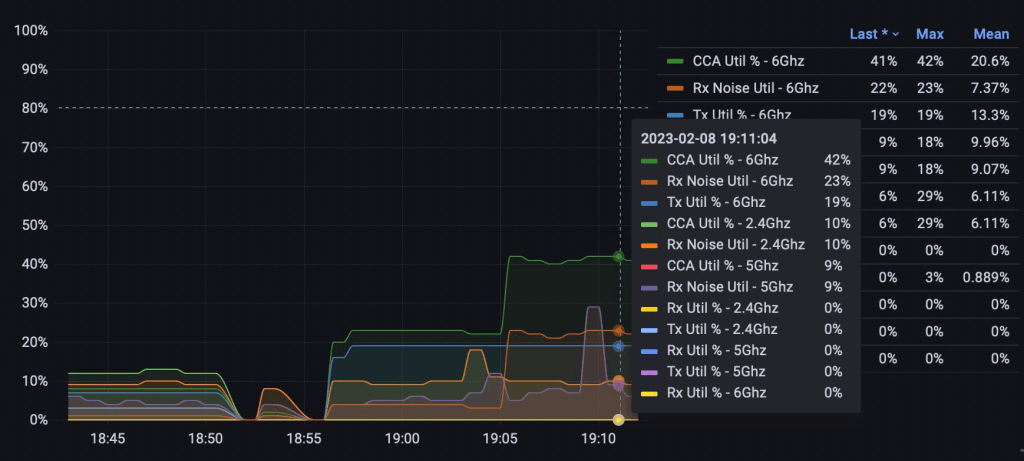
I have also tested to set it at 5ms (why not) and that ended up with a stable 40% Channel Utilization on 6GHz. So be careful with this one.
Want to learn more?
Yes, of course you want to learn more. (will update this list, or move it later)
- Did you see the short-SSID in the RNR and FILS frame? Read more about it here: https://bryanward.net/wp/2022/11/30/short-ssid-ed/
- Cisco also have a lot of good blog post by a lot of very smart people about 6GHz that you can read here: https://blogs.cisco.com/tag/6ghz
- David Coleman (Extreme) has a free WiFi6 and WiFi6E for Dummies book you can get here. https://www.extremenetworks.com/resources/ebook/wi-fi-6-6e-for-dummies/
- He also have a few blogs about 6GHz Discovery you can find here: https://www.extremenetworks.com/extreme-networks-blog/the-road-to-ap-discovery-in-6-ghz/
- https://praneethwifi.in/2021/03/10/wpa3-authentication-part-1/
- https://wirelessgnan.com/2020/08/31/keys-to-understanding-wpa3-sae-diffie-hellman-key-exchange-elliptic-curve-cryptography-and-dragonfly-key-exchange/
Now back to the testing!
My 6GHz SSID on the C9800
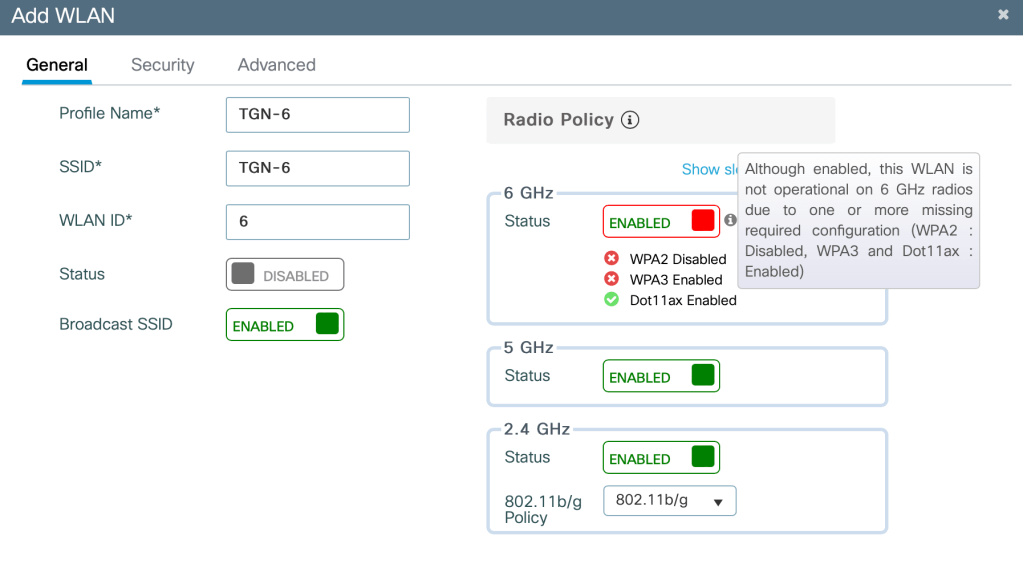
My 6GHz SSID is very similar to what you are used to, only difference is that you now have to use WPA3 only and set PMF (Protected Management Frames) to Required. In other words, that means if you want to enable 6GHz on your corporate SSID then every client need to support WPA3.
In this blog I will focus on WPA3-Personal and not WPA3-Enterprise. You can read the Cisco WPA3 Deployment Guide here.
WLAN Profile – General
Here you see a nice warning that you have to disable WPA2 and enable WPA3.
WLAN Profile – Security – WPA3
This next picture shows you every option you have under Layer2 Security, here you see that I have enabled WPA3, PMF is set to required and FT is Disabled. You see an option here for FT+SAE but I will wait for that for my 6GHz roaming blog.
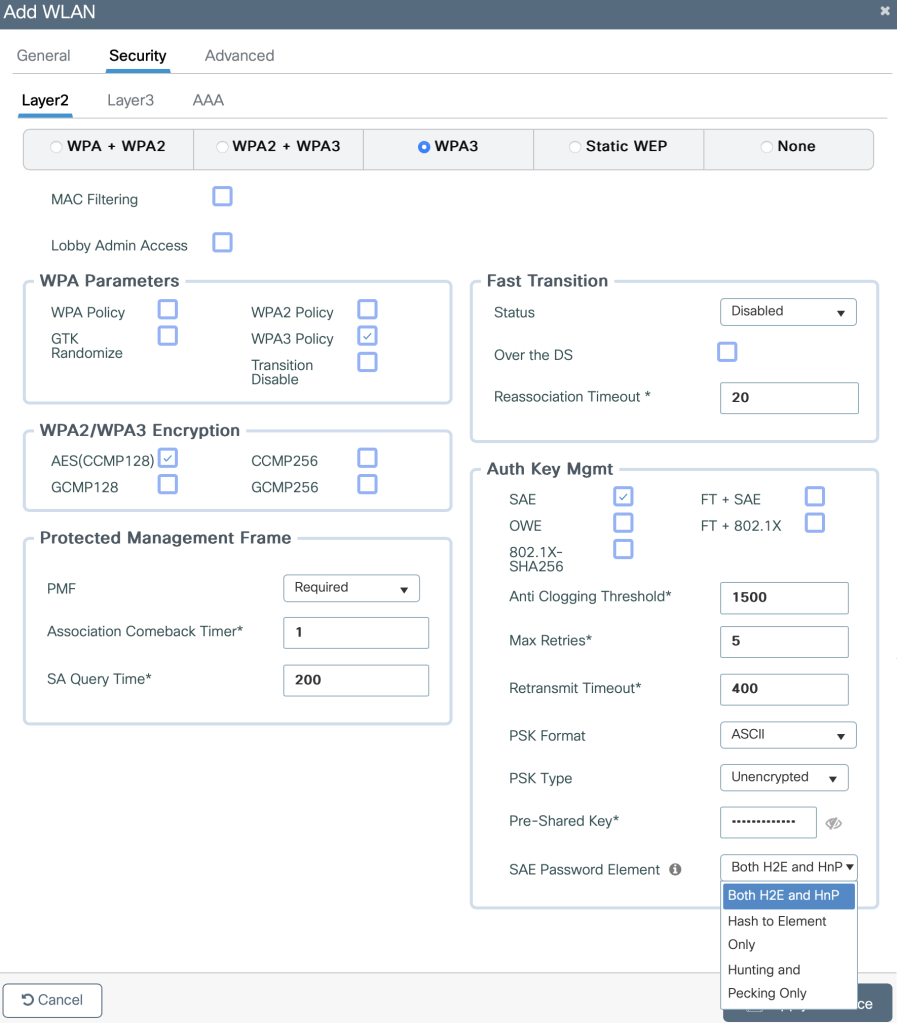
In the SAE Password Element we have three options. Hash to Element Only, Hunting and Pecking Only or both H2E and HnP. In the WPA3 Deployment Guide Cisco mention that you have to use H2E only if you have a 6GHz only SSID.

Information about H2E below:

Cisco Catalyst 9800 Series Wireless Controller Software Configuration Guide, Cisco IOS XE Dublin 17.10.x Chapter: Wi-Fi Protected Access 3
Now, let me tell you a short story. Two of my Windows computers on AX210 would NEVER, I mean NEVER associate to an SSID if both H2E and HnP was used. Yes, 2.4, 5 and 6GHz was used but this never worked.
I have stayed on H2E for 12 months. But in this blog I will test with both turned on, even if H2E seems to be the most secured and prefered method.
WLAN Profile – Advanced
In the Advanced section you find settings like 11k, 11v, Band Select, 6GHz Client Steering among other things. For this test I have enabled 11k, 11v, Band Select and 6GHz Client Steering.

I guess 6GHz Client Steering will not work on my MacBook.

6GHz – RF-Profile
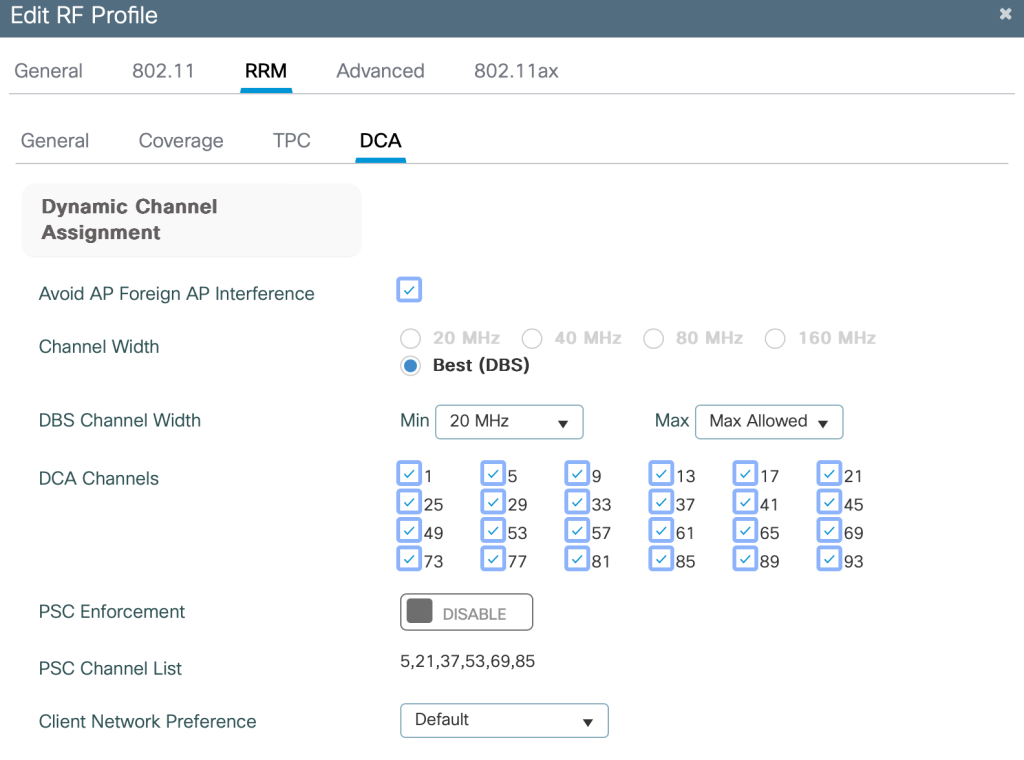
This is how my 6GHz RF-Profile looks like, I have not changed anything in the TPC or DCA since I will use static channels and Tx Power for my testing.
Here you see that I have only access to UNII-5, maximum allowed channel width is 80MHz with RRM but I can manually change it to 160MHz on an AP. PSC is not enforced, but Cisco RRM will only use PSC (Preferred Scanning Channels).
Next up is the 802.11ax section, and here you see that I can actually enable FILS Discovery or Broadcast Probe Response even if I use RNR (Reduced Neighbour Report). FILS is enabled by default if you only have 6GHz only SSIDs.

AP Radio Configuration
I have used the 9166 since that one has 4×4 on all bands with .3at (PoE+), and used 40MHz on 5GHz and 6GHz. Since clients usually prefer wider band, and I want to make it fair fight for both clients. I have disabled my other APs during these tests.

Test 1: 2.4, 5 and 6GHz enabled SSID with H2E and HnP
The test will go like this, I will capture on 6@20, 100@40, 69@40 at the same time with the WLANPi using AirTool. I «forget|delete» the SSID on both computer before each test, so I can see what frequency they prefer when authenticating to the SSID.
Next up is to measure from the first authentication frame to the last ack after the last EAPOL frame, and from the first Probe Request. Hopefully we will see a lot of weird behaviour like I have seen before or not, since everything is better now right?
MacBook – Test 1:1 – It works!
Straight to 6GHz! The MacBook did not even flinch about looking at 2.4 or 5GHz, it went right away to 6GHz. It used 81.2ms from the first Authentication frame to the last Ack after the last EAPOL frame (151ms from the first Probe Request).
Take a note of the Probe Request to 6GHz right after the Disassociation from the 5GHz SSID. It will make more sense, or not later.
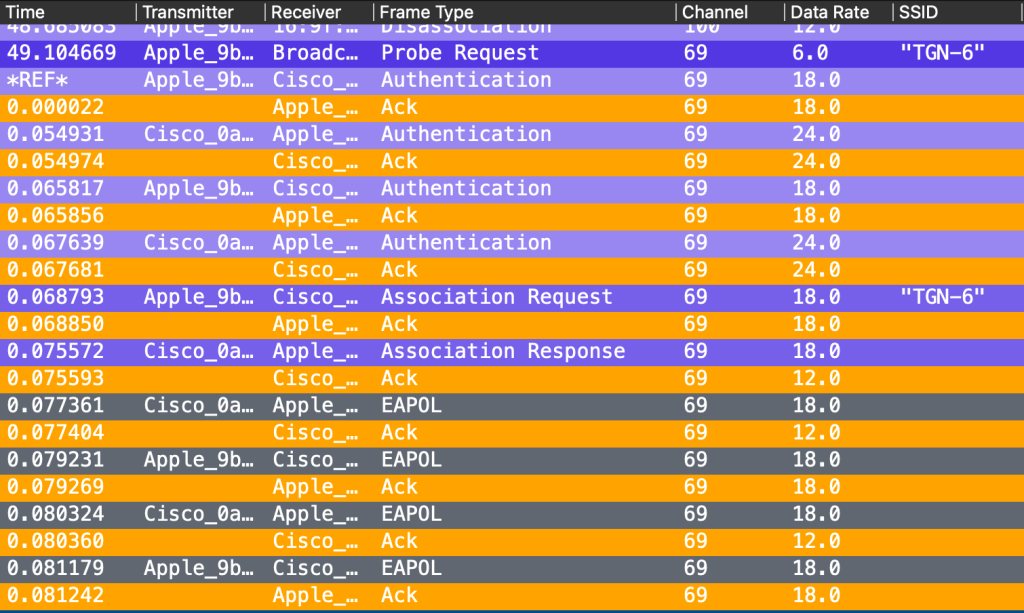
I have seen my MacBook joining 5GHz first, before jumping back to 6GHz, so let me try this a few more times to get a different result.
Macbook – Test 1:2 – I broke it!
In this test I joined my Meraki SSID, and then back again. Then something weird started to happen, now my MacBook sends the first Commit and it get Declined over and over again on 2.4, 5 and 6GHz in a constant loop.
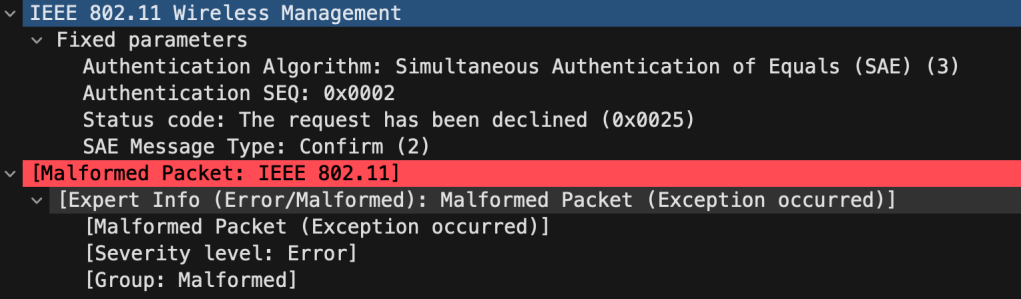
It refuses to join, and my client is most certainly added to an exclusion list.

This I have to try again!
Macbook – Test 1:3 – Trying to fix it!
I tried the same thing, changing SSID back and forth, and that worked. I guess I was removed from the exclusion list? But I did not find any obvious logs on the controller. What is going on here?!
I then tried to turn off and on the Wi-Fi and connected back, and then it happened again. I just had to wait a bit and then it worked again. Then it suddenly asked me to type in the WPA3 password again, but that did not work.
So what I had to do was; Type in the password again, make it fail. Turn off the Wi-Fi, turn it back on, wait a bit, join so it fails, join again. Boom! It works!
But not always, please keep reading.
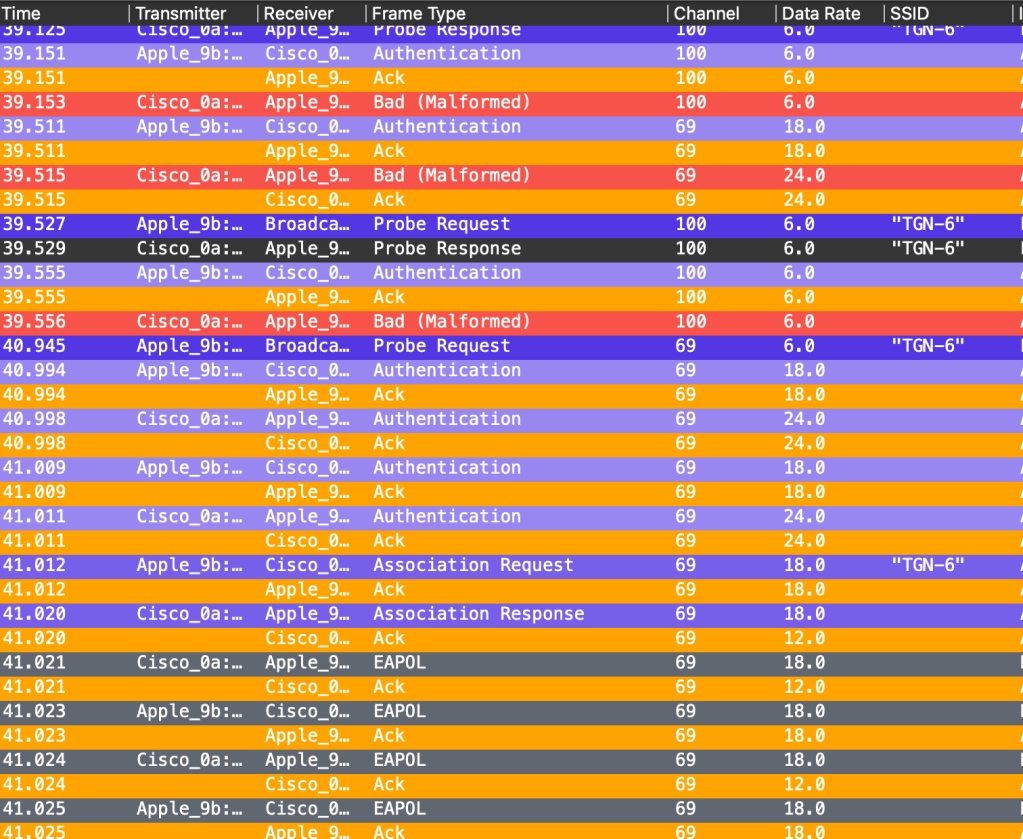
Yes, I made a disabled Wi-Fi try to join a 6GHz SSID and fail. (Intensive SAE mathematics working in the background I guess)
The solution if this happens seems to be to just wait a bit, and then try again. Sometimes I could change SSID back and forth, other times not.
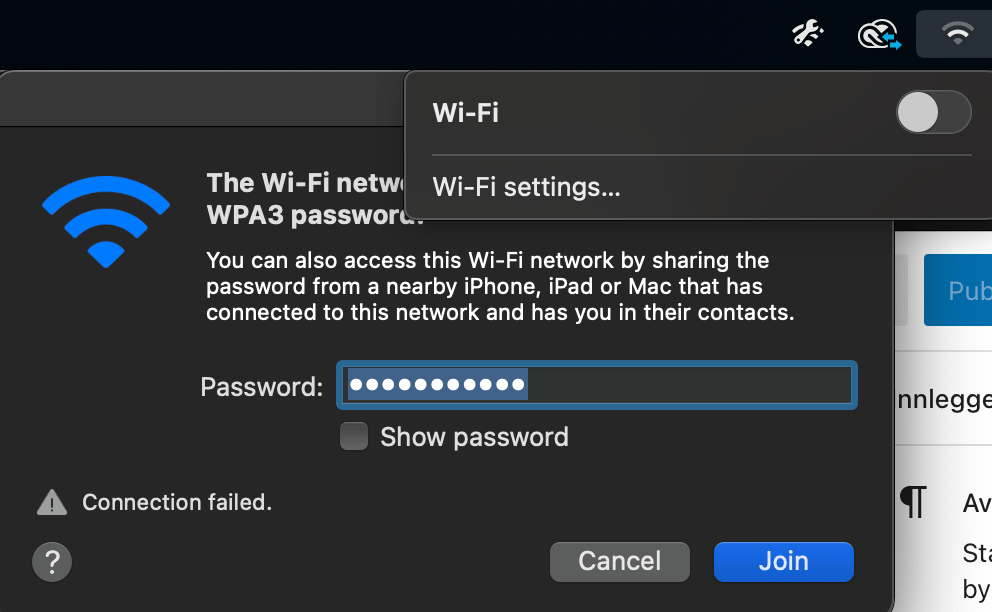
I found this while debugging it on the controller, and also some indication that my client was seen as a threat from the rouge policy.
My guess is that I am added to an exclusion list somewhere. But no indication on that on the controller. Logs provided below does not make any sense.
2023/02/19 19:49:12.706407191 {wncd_x_R0-0}{1}: [client-orch-state] [16912]: (note): MAC: 5ce9.xxxx.xxxx  Client state transition: S_CO_IP_LEARN_IN_PROGRESS -> S_CO_RUN
2023/02/19 19:49:12.722478244 {wncd_x_R0-0}{1}: [client-orch-sm] [16912]: (ERR): MAC: 5ce9.xxxx.xxxx  Failed to process hreap client update from ap. Error:2. Unknown client BSSID - 0000.0000.0000
2023/02/19 19:49:16.686697282 {wncd_x_R0-0}{1}: [client-orch-sm] [16912]: (note): MAC: 5ce9.xxxx.xxxx  Client delete initiated. Reason: CO_CLIENT_DELETE_REASON_MN_DEL_DISASSOC, details: , fsm-state transition 00|00|00|00|00|00|00|00|00|00|00|00|00|00|00|00|00|00|b4|b7|ba|bb|37|46|48|4a|4c|51|60|62|83|aa|
2023/02/19 19:49:16.686743307 {wncd_x_R0-0}{1}: [client-orch-state] [16912]: (note): MAC: 5ce9.xxxx.xxxx  Client state transition: S_CO_RUN -> S_CO_DELETE_IN_PROGRESS
Macbook – Test 1 – Conclusion
If we look past the errors that happened, I will say this worked well. Who in their right mind switches SSID so often that I do, but if this happens during roaming it would be way worse. The MacBook actually did everything correct, it joined 6GHz since both 2.4 and 5GHz was more busy. Everything else is just me doing stuff nobody else should do.
Windows 11 PC – Test 1:1 – It failed!
Same first test as the MacBook, I am capturing on 6@20, 100@40, 69@40 at the same time to see what Windows and Intel decides to do when I try to join a 6GHz enabled SSID.
But, what is this mess? Not only did it fail, but I also see these constant radio-calibration frames that Jim Vajda mentioned in the WiFi Pro Slack channel. I got a bunch of these between every Commit that was Declined.
This did not goes so well did it, the same behaviour we saw with the MacBook on the second try. I am only showing you a bit of the pcap here, but it did the same for all bands multiple times before giving up. Declined, Declined, Declined!
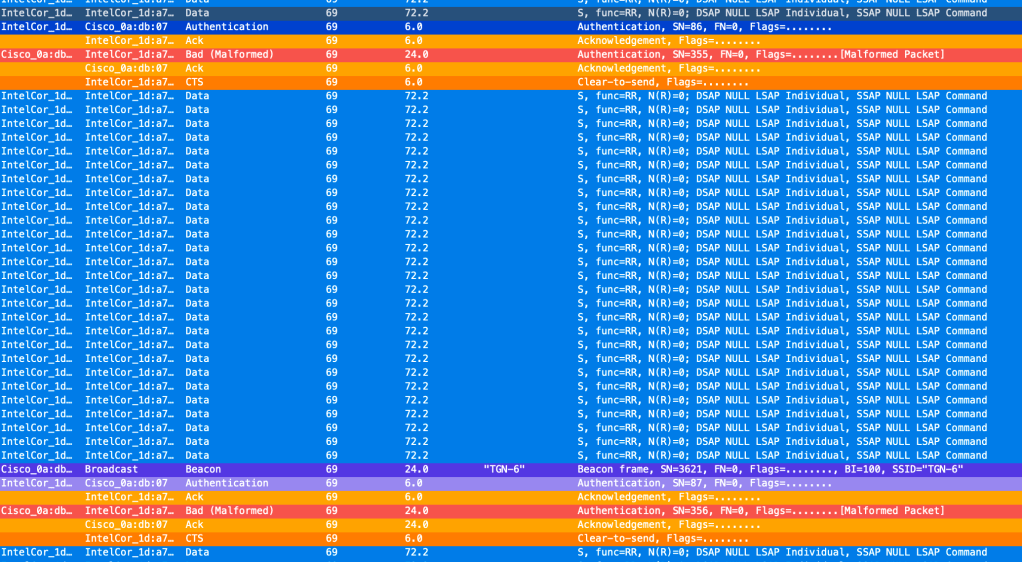
Now let us try this again!
Windows 11 PC – Test 1:2 – It works!
Now it worked, and this is actually the first time I have seen it worked on an SSID with H2E and HnP enabled on a Windows PC. I do not know when this was fixed, but it was not like this before.
The only difference here is that the Windows PC did send Probe Requests on 2.4, 5GHz and 6GHz before authenticating. The MacBook did not do that when I tested, the MacBook only sent a Probe Request to 6GHz at around 70ms before the first authentication frame. The Windows PC sends out a lot of Probe Requests to all bands before deciding to go for 6GHz.
Note! I do not have an SSID called 80?! More on that later.
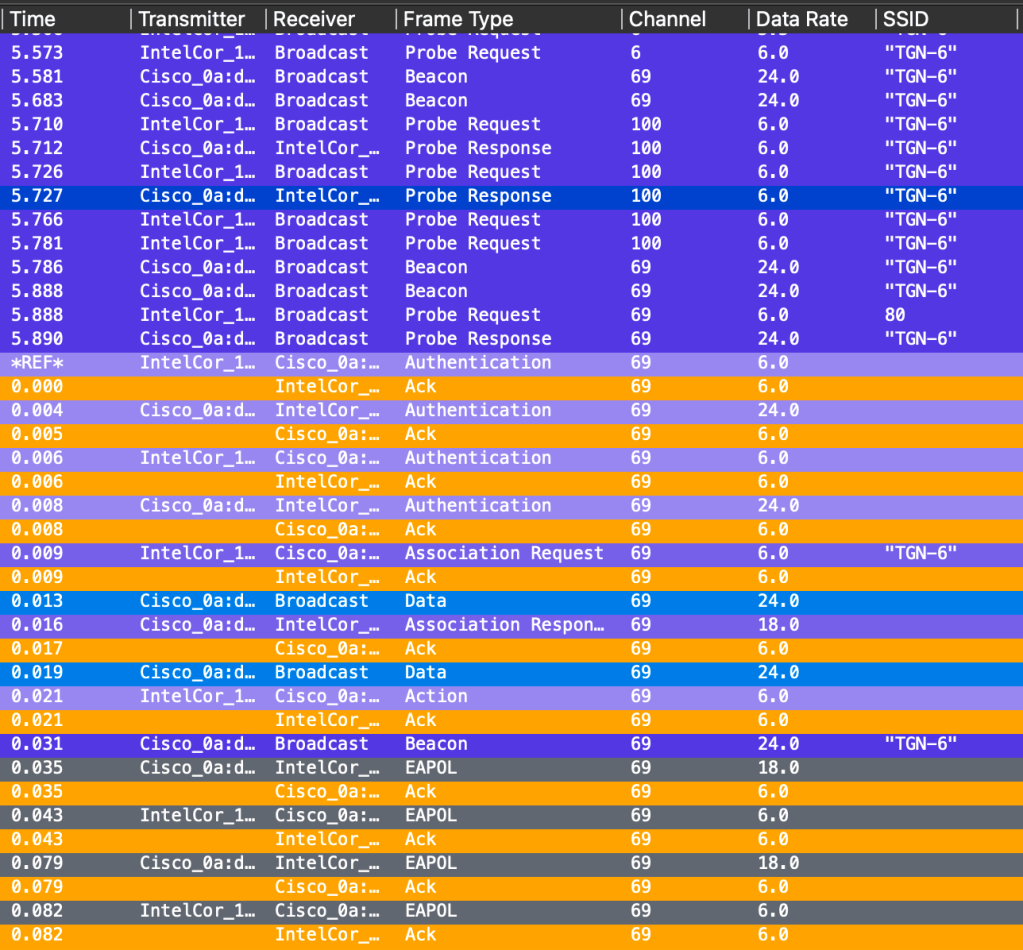
I will have to try this one again, like I did with the MacBook. switch SSID back and forth, turn off Wi-Fi and see if it still works.
Windows 11 PC – Test 1:3 – Does it still work?
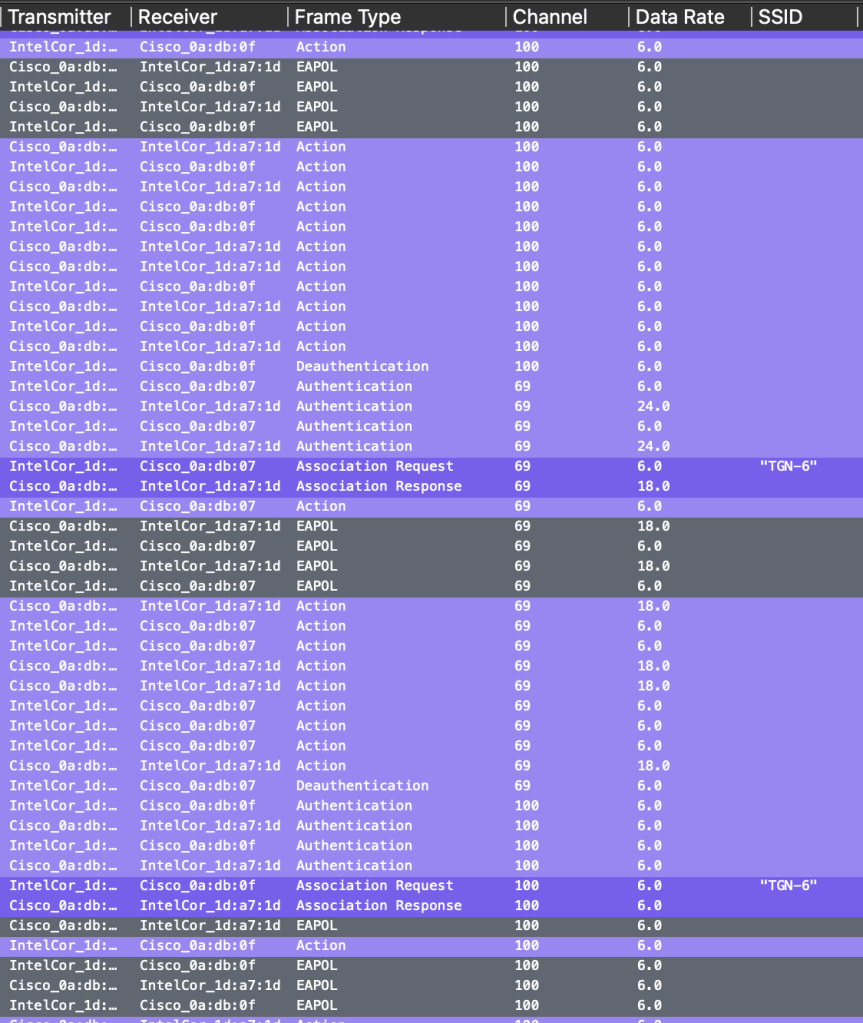
This worked, but each time it started the authentication on 5GHz, then back to 6GHz and back to 5GHz again. But it did not break like it did with the MacBook. With my Windows PC I could switch back and forth as much as I wanted, and turn off and on WiFi a lot of times but it never failed! (Only at Test 1:1).
Below you see a part of the pcap where we see it authenticating to ch100, ch69 and back to ch100. This happened again and again, but it never failed.
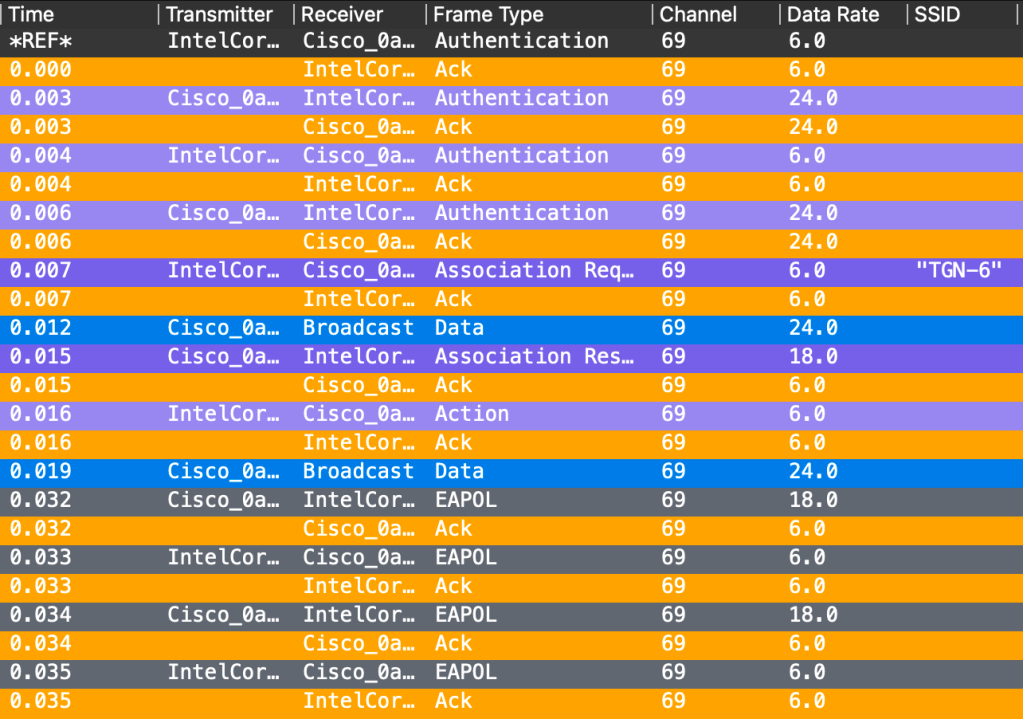
How much time does it use to authenticate now? Congratulations! 35ms.
I was expecting things to fail more often, good that I waited 12 months on writing this blog, but I think the MacBook needs a second chance to win over the PC.
Windows 11 PC – Test 1 – Conclusion
This worked better than I had hoped for, a little bummed that it changed from 5 to 6GHz a few times. But if I was an employee using this WiFi I could not complain, because it would still work. I had turned off that the Intel AX210 should prefer 6GHz to make it a fair fight between Apple and Windows|Intel. But I know Apple already has a «prefer 6E» mode. So I guess I should have turned it on. The weird bugs I get, I cannot explain. But I know normal users would not experience this as often as I do, or at all.
In short, a great test. Kudos to Windows and Intel, but I will stay on only H2E since that seems to be the most secure method.
Macbook – Test 1:4 – A second chance
I managed to capture one that took 31ms this time. Much better than last time! I also made it crash again, like we saw on both clients. But this time it was because I joined a different SSID on the same controller and back again.
Test 1: Conclusion
First of all, I am happy that I made it «crash» a few times on both computers. That is a good sign of a bug, or a feature on the C9800 controller. My guess is that SAE fails somewhere between the client or the controller, and I get excluded after the clients sends so many commits that gets declined over and over again.
Both clients usually preferred 6GHz over 5GHz, Macbook more than Windows. I am also able to re-create the SAE «crash» more often on the MacBook. You can also change more variables on the Intel card, like roaming aggressiveness, preferred band and a few more things that maybe gives it an advantaged.
Now on to the next test. A 6GHz only SSID.
EDIT: DD/MM/YYYY – 03/04/2023
The error I got was indeed some «blockage» happening, this is fixed in 17.11 but only if your SSID is in central-switching mode. Not pure flex-mode. It is not mentioned in the release notes (yet). As I mentioned in this blog, no normal person join/disjoin/join like a weird person like me who likes to break things.
Test 2: A 6GHz only SSID (H2E) and FILS
Macbook – Test 2:1 – RNR to the rescue!
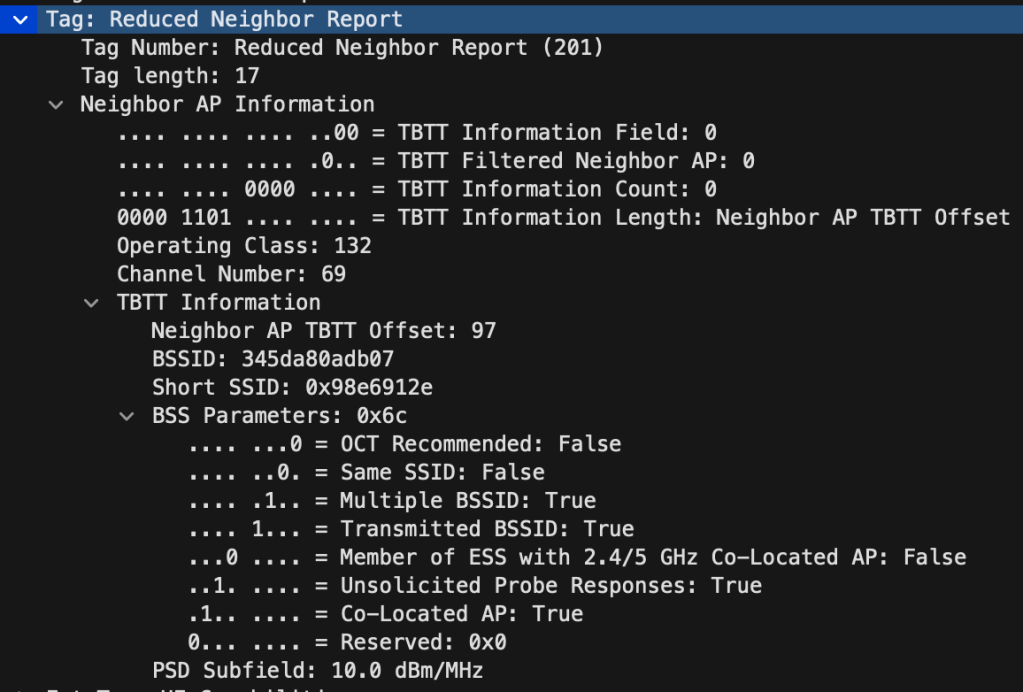
Does it work? Yes and no! It does not support FILS Discovery or Broadcast Probe Response. I still managed to join my Macbook to a 6GHz only SSID, since information about that 6GHz SSID is inside the RNR of any other 5 or 2.4GHz SSID the AP is broadcasting.
Below you see the RNR (Reduced Neighbour Report) that contains the Channel Number: 69, BSSID and Short SSID. «Same SSID» is set to False, since the 6GHz SSID only has 6GHz enabled and this RNR if from a different SSID.
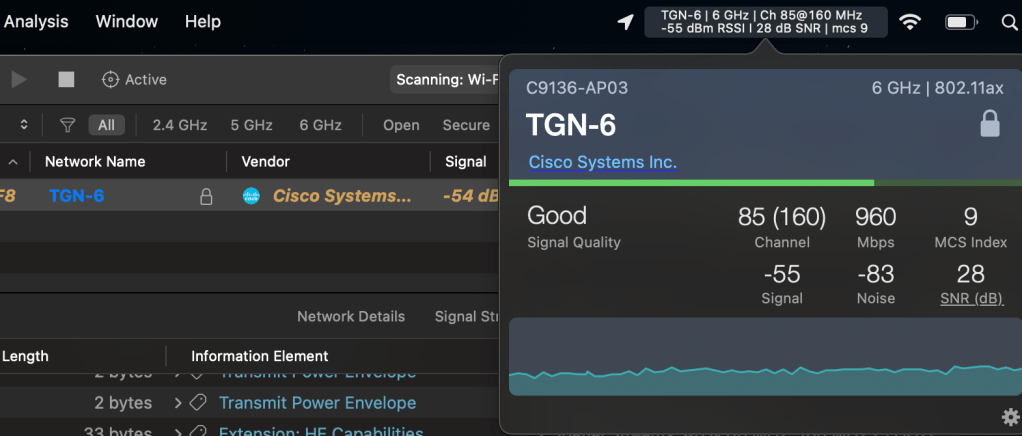
The result! I am joined to a 6GHz only SSID.

Macbook – Test 2:2 – What about no RNR and FILS?
Because I like to try everything, what happens if I turn off the 2.4 and 5GHz SSID so there is no RNR information that the MacBook can learn from?
The result, it is still associated! I turned on one of my other APs during this test, to see if my MacBook could find it. But it could only find ch85 that it is currently associated to and not ch69 from the other access-point.
This you can try yourself, just stop the scan in WiFi Explorer and turn it back on. Then you will see that it can only find the SSID it is currently associated to.
When I was writing this, my MacBook screen turned off. Then WiFi Explorer could not find the 6GHz SSID anymore, and I was disassociated.
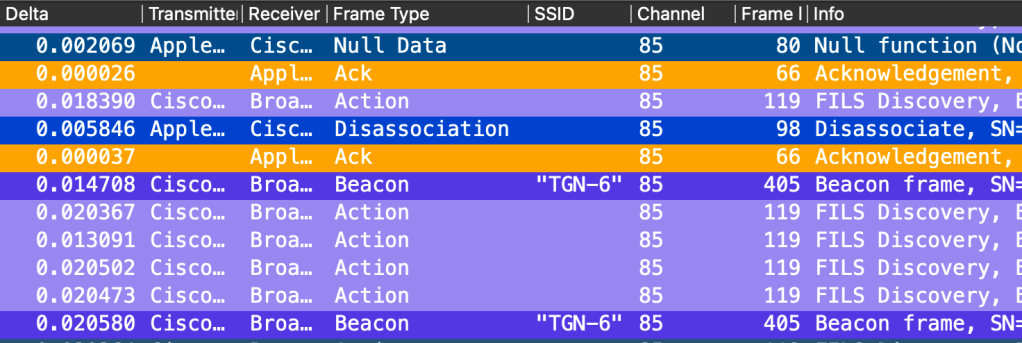
Logs from WiFi Signal shows that I was having a stable connection to TGN-6, but It ended up on my Emoji Meraki SSID with RNR instead. That ironically is on the same channel as it was previously associated to.

Apple!! You could have just sent a Probe Request to ch85 since you definitely knew about it before your screen went dark!!!
«Hello Apple? Do you hear me» – broadcast probe response sent every 5ms.

I have tested this a few more times, and when you disable any SSID with RNR while you are still associated to a 6GHz it will stay connected. But the second my MacBook goes to sleep it will send a Disassociation frame and forget everything about the 6GHz SSID it was recently associated to. Like it never existed.
Next up! What happens if I enable the 5GHz SSID again so my MacBook can find my 6GHz SSID but I forgot to turn off the Broadcast Probe Response that is sent every 5ms?
Macbook – Test 2:3 – RNR and Broadcast Probe Response, WEP?!
Now let me show you something funny! The Broadcast Probe Response does not contain the RSN IE, so Apple think it is WEP. So remember to turn off Broadcast Probe Reponse after you have enabled the other SSID with RNR. Because now I cannot join at all, because the Broadcast Probe Response that can be used for a 6GHz only SSID that Apple do not support is being heard by Apple because of RNR.
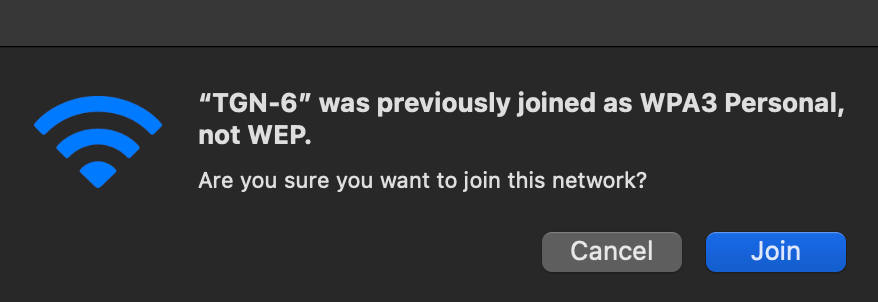
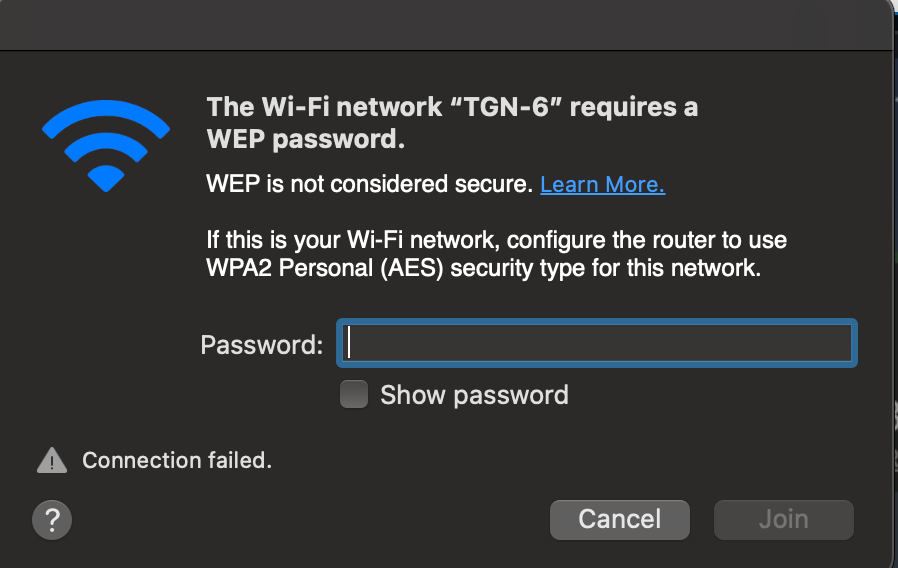
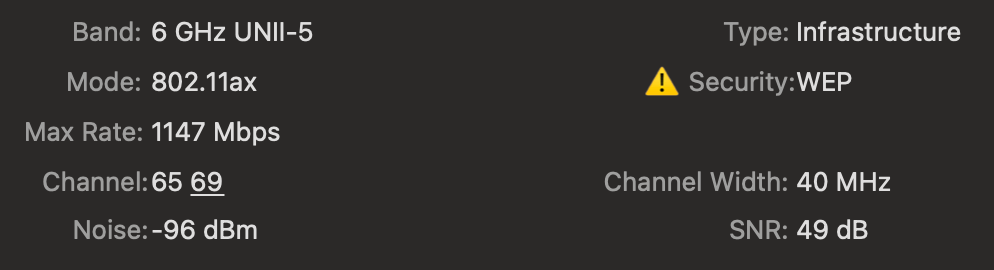
Below is how my Broadcast Probe Response look like. Question: How does your Broadcast Probe Response look like? Should it contain the RSN IE?
Only thing I see Is the RSN eXtension, but not the RSN IE. Pretty weird right?
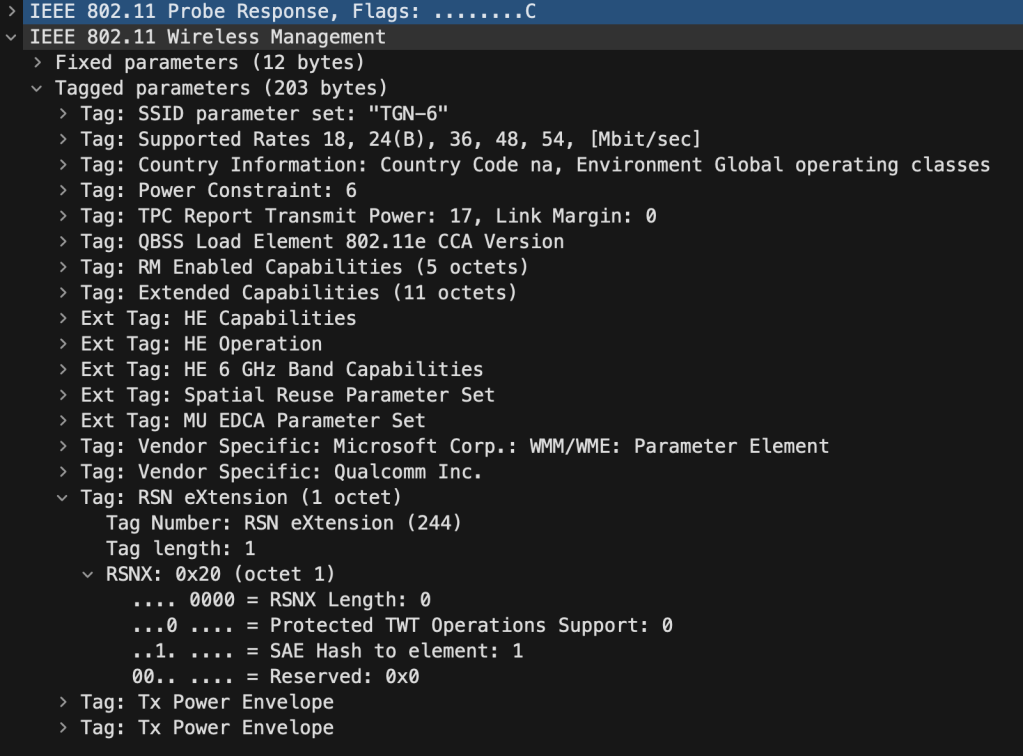
FILS the other method to help clients find a 6GHz only SSID does not work either, we will test that later with the Windows machine.
Macbook – Test 2 – Conclusion
Hopefully Apple will get support for FILS later, but if you want to have a «secret» 6GHz only SSID then RNR is your friend. With RNR you can have a 6GHz only SSID and let other SSIDs you have enabled broadcast information about that SSID to clients that support 6GHz. This will also work for non-PSC channels.
Just don’t use Broadcast Probe Response, because Apple think that is WEP, because of the lack of RSN IE.
Now the big question is how it will roam if I first let it join to a 6GHz SSID using RNR and then disable the SSID with RNR. It should know about neighbours with 11k right? My guess is that it will not work, because it will only know about the current connection and drop off if anything happens. But I will test that later.
Windows PC – Test 2:1 – FILS
Windows actually supports a real 6GHz only SSID, and it seems to listen on channels and respond to FILS. In the below picture I turned off WiFi and turned it back on so it start on a new scan. I captured on only ch69 and found the same Probe Request to SSID 80 again.

When we open this up, we see it is involved with FILS. Here I find a FILS Request Parameter that Wireshark could not decode correctly and the Short SSID.
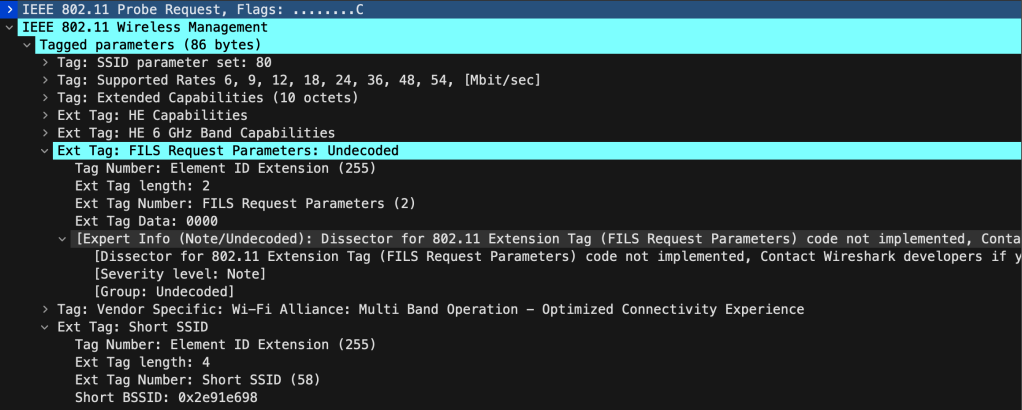
The Windows PC authenticated and associatated to 6GHz without issues in 46ms.
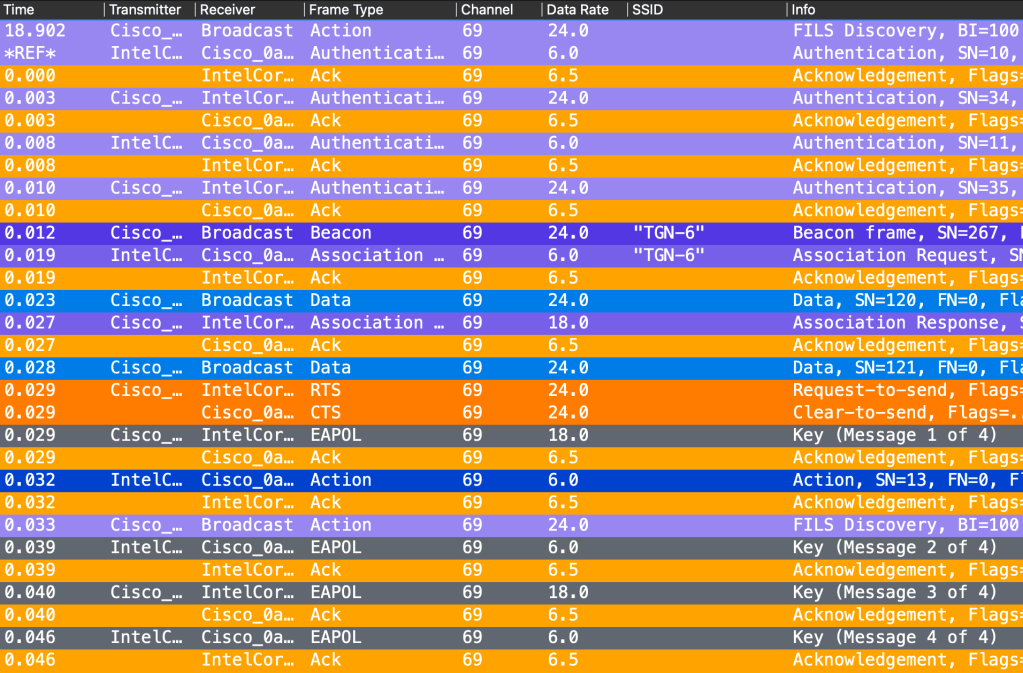
Windows PC – Test 2:2 – Broadcast Probe Response
Now this one was interesting! Since the the Windows PC support Broadcast Probe Response, it never sent any Probe Request. The 6GHz SSID would show up in the list of available networks and I did not capture anything from the client.
I changed the Broadcast Probe Response to be sent every 20ms, and it would Authenticate without problems every time I tested. But sometimes when I turned off and on the WiFi adapter the 6GHz SSID would not be there before the next scan.
The lack of RSN IE is also not a problem for Windows. It took 25ms to authenticate and associate this time.
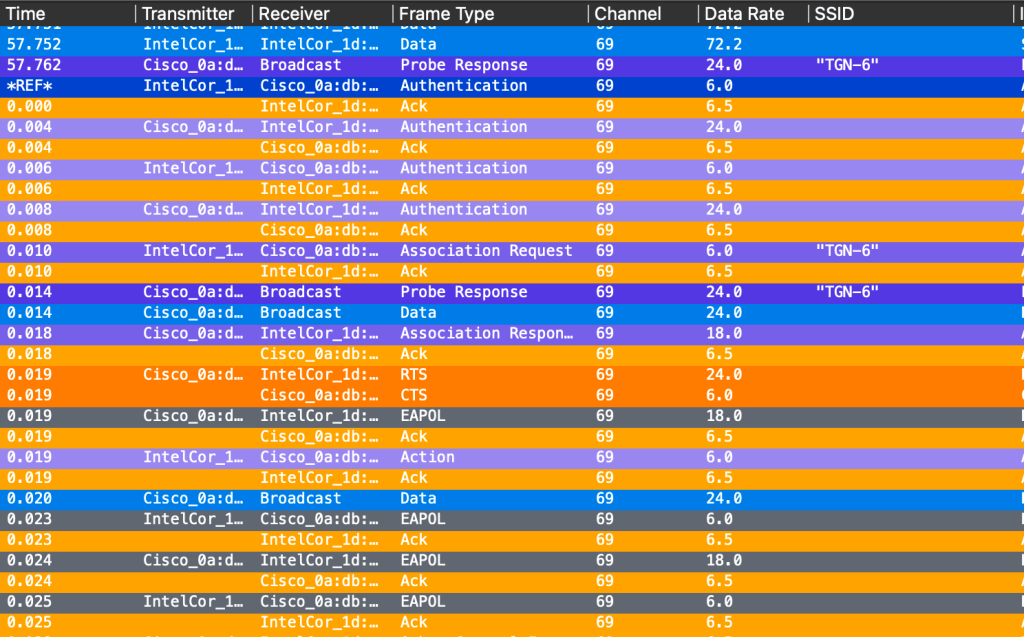
Windows PC – Test 2:3 – non-PSC
Thank you Jim Vajda for this question, this is something I should have added since I have mention that you should not use PSC a few times before on Twitter.
But, like always. It depends. I am also 100% sure I got a syslog message when I used a non-PSC channel on my C9800, but I do not get this anymore.
Now the big question, what happens if I use a non-PSC (non-Preferred Scanning Channel) on my access-point?
non-PSC, RNR
First up was to change the channel on my access-point to use ch25@20 (non-PSC), but I had 5GHz enabled on the same SSID to provide RNR information.
This was not an issue, my PC could find it right away. Same thing goes for the MacBook. I tested joining the SSID and that worked without issues. Would I recommend using non-PSC? No, let us try and play by the rules.
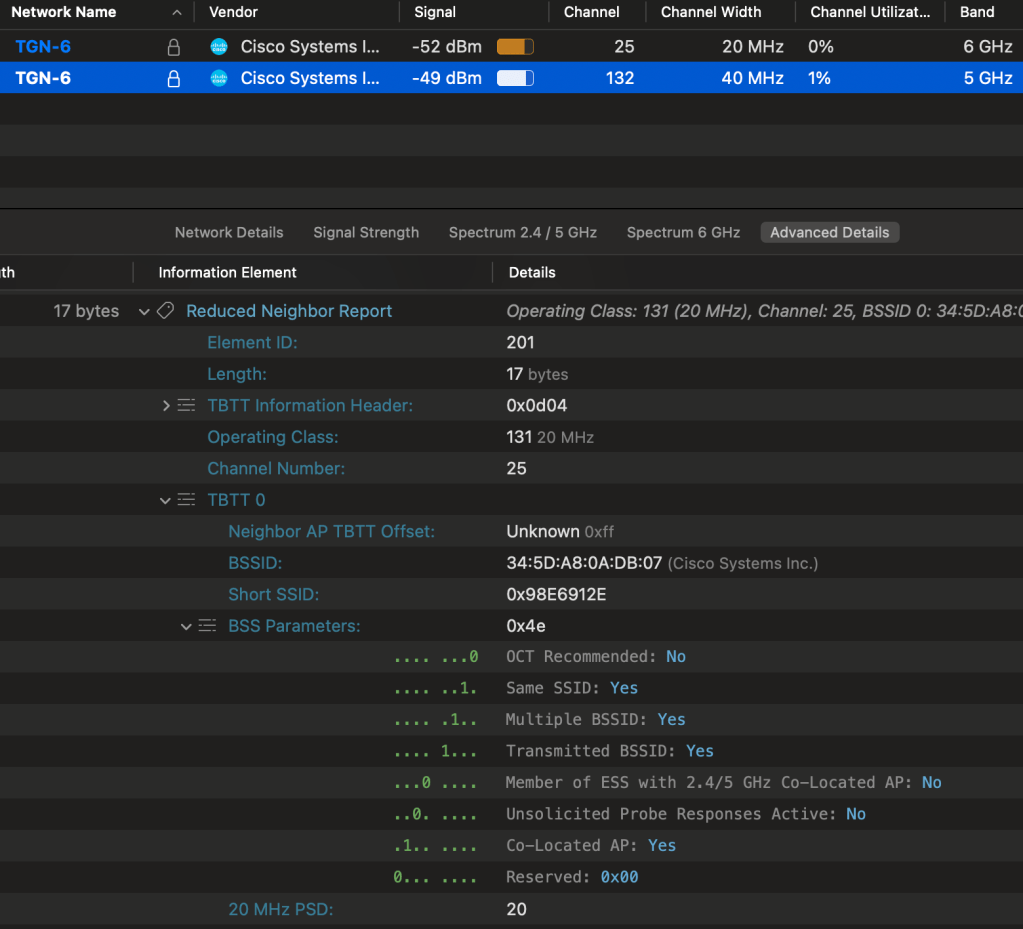
non-PSC, FILS
I turned my WiFi card on my PC off and on several times, waited for it to start a new scan. Nothing, nothing at all. The SSID list was not populated.
In other words, 6GHz only SSID without RNR using a non-PSC channel did not work.

non-PSC, Broadcast Probe Response
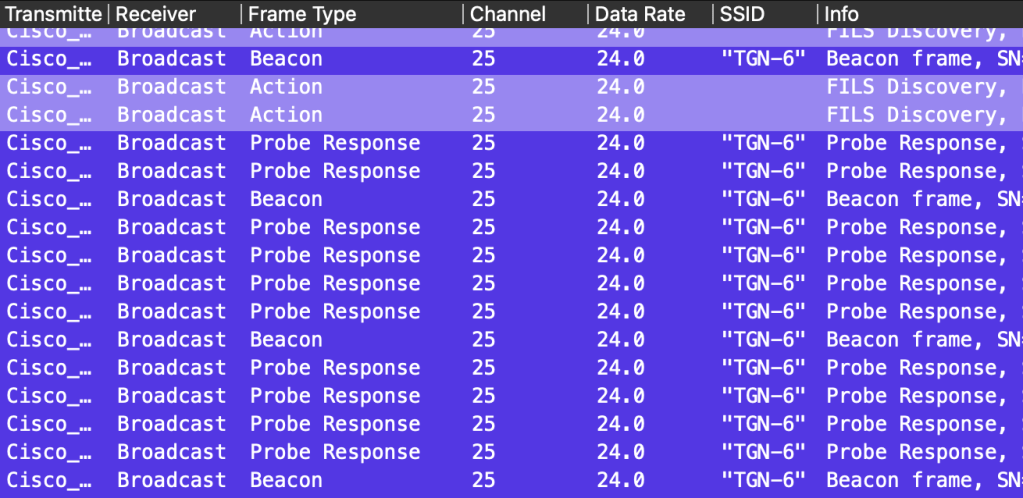
Now what about Broadcast Probe Response? Will the Intel driver listen on a non-PSC channel? The answer is, no.
Same thing here, the SSID list was not populated. I am just showing you a pcap screenshot, but trust me. Nothing happened, only other thing than FILS, Beacon and Probe Response frames was three radio-calibration frames from the AP.

Windows PC – Test 2 – Conclusion
This worked well, a little to well to be honest. When I used FILS I found new elements in the Probe Request that I need to look more into and the Broadcast Probe Response was interesting since that clearly helped so clients did not have to probe each channel, it could only listen for the Probe Responses.
It could be a good idea to measure the amount of traffic with both types of solutions since FILS is less than half the size of the Probe Response. Using RNR is most likely the best solution for most people.
I was also able to test the same thing with a non-PSC channel that proves at least for now that both Intel and Apple can only learn a non-PSC from RNR.
Test 2: Conclusion
Not much to say here. Only that Windows and Intel won Test 2 by a landslide! Because they support FILS and Broadcast Probe Response. We are still in the early stages of Apple and WiFi6E, so hopefully we will see support for 6GHz without RNR in a future update.
Final Thoughts.
What a ride this has been, I cannot wait for WiFi7! I am forever grateful that Cisco pushed my C9136 order so I could get them early. I have been testing client connectivity a lot, and things have gotten so much better every time Intel released a new driver or when Cisco releases a new version of the C9800.
The amount if issues I have had with Windows and Intel in the beginning is way better now, and with Apple I do not even get as much issues that I had with Windows last year, so I think it was great that Apple waited a bit on 6GHz.
99% of the time, when I use this MacBook like a normal person, it will associate to 6GHz without problems. I also have two PCs with AX210, and they do not act the same, the laptop I used in this test is way more stable than my desktop PC. I guess it depends, it depends on a lot of things.
I hope you liked this blog, I hope it has been fun. At least for me! I have so much more stuff to find out now, and so much more fun things to test!
What’s next?
This blog is already too long, but I really wanted to add OWE as Test 3. Maybe I will update it later, but my next blog will be about 6GHz roaming. Since I have a WlanPI with 6 adapters that support 6GHz. So I am thinking about using 3x6GHz capable access-points and monitor 3x6GHz channels and 3x5GHz channels when I do my roaming testing.
 Wireless TechDectives