Most of us know about Cisco sniffer mode, this is not new and has been around for years. But in later versions (17.8.1 and later) you can now start to sniff without needing to boot the AP at all.
This works for APs like the 2800, 3800, 4800 and 9100 series APs. The XOR radio can be placed into a single radio role without needing to place the entire AP into a single mode. This is pretty cool especially if you need to do remote captures on a single 5Ghz channel, then you can just enable the other 5Ghz radio to sniff on the other 5Ghz radio channel. No boot required!
Also, if you have multiple C9136 like I do, I can capture 6Ghz by placing ONLY the 6Ghz radio into sniffer mode, but leave the other radios enabled.
You can read more about it here https://www.cisco.com/c/en/us/td/docs/wireless/controller/9800/17-8/config-guide/b_wl_17_8_cg/m-sniffer-cg.html
This blog by Cisco cover most of how to use sniffer mode, so this post will just be about sniffing on a single radio. Fundamentals of 802.11 Wireless Sniffing
You an also read about how it can crash here: C9136 XOR Sniffer mode crash
How to enable sniffer mode on the radio
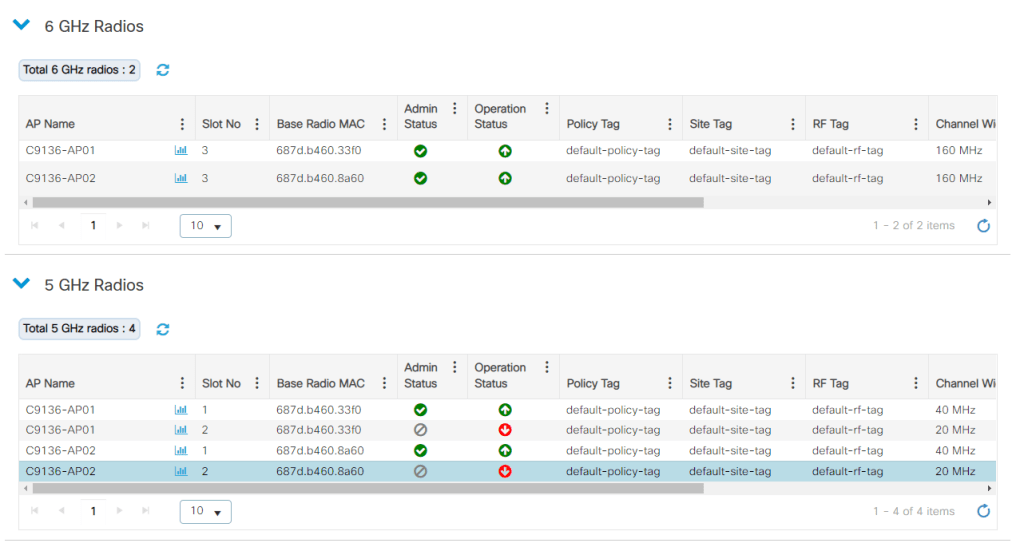
To enable sniffer on a single radio you go to configuration – Wireless – Access Points and find the radio you want to enable. Below is a list of all the 6 Ghz and 5 Ghz radios. Since I do not have a .11bt switch (UPoE) I do not have all the 5 Ghz radios enabled.
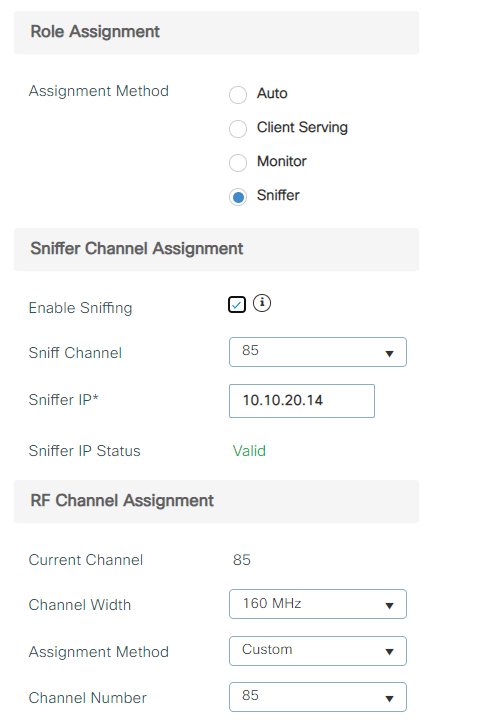
Next up you just press the radio you want to enable sniffer on, choose the channel, bandwith and the source IP of the host that is listening. Then you update and apply to the device.
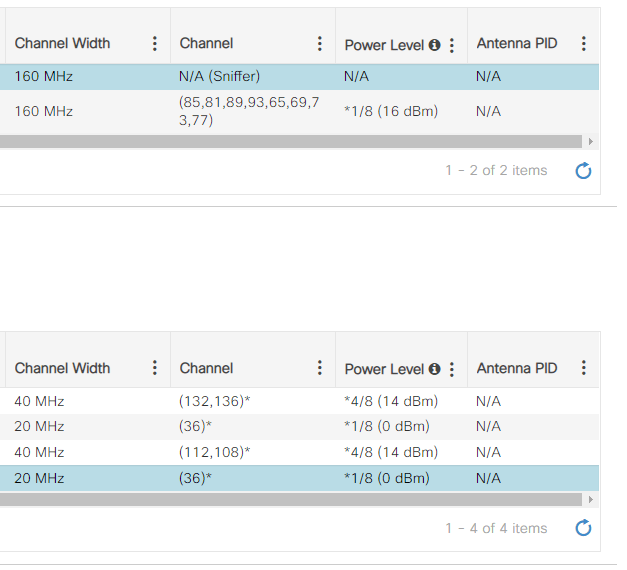
As you can see, 5 Ghz is still working and ONLY the 6 Ghz radio is in sniffer mode.
Use Wireshark to capture the frames (packets)
Before you start to capture the traffic in Wireshark you need to set the capture option to receive only traffic coming from the sniffing AP.
«Set the capture options to receive only traffic coming from the sniffing AP. If you set the filter only for port UDP 5000, you will miss IP fragments in the capture if the AP has to fragment the packet (which will happen if it sniffed a 1500 bytes long frame to which it needs to add PEEKREMOTE encapsulation) – Fundamentals of 802.11 Wireless Sniffing«
Once you have set the filter, you need to use decode the udp (5000) with PEEKREMOTE, and now you capture 6 Ghz with ease (if you have 2×9136 that is).

Does it always work.
Well, no. This can be because of I use EFT images of course, but I often ONLY get beacon and FILS discovery. But FILS should not be used if the SSID has 5 and 6Ghz enabled If I understand this correctly, and it is turned off on the controller.
I often do not see any ACK, BLOCK ACK, CTS/RTS or anything even with 2 clients joined to the AP. Sometimes it works like the picture above, but often I only get FILS and Beacon frames even with 2 clients connected to the channel I am sniffing.
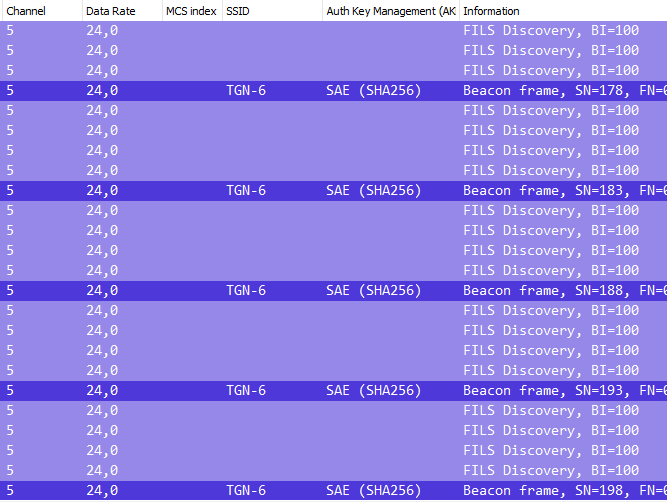
EDIT 06.02.2023: Yes, that was a bug. FILS will be sent if you have 6Ghz only, but you can enable FILS or Broadcast Probe Response if you like even when you use RNR. The other «bug» was that I had to use L2 for my Wireless mgmt interface, and not L3. Now it works like a charm all the time.
But does it sniff without a boot and it is very useful. Yes, and yes!
 Wireless TechDectives